Wi-Fi watchlist
The Wi-Fi watchlist keeps a list of Wi-Fi networks you care about. When one of them is seen, Network Survey shows a notification and records the sighting, so you can review where and when it was seen.
You can watch a network by its name (SSID), watch one access point by its MAC address (BSSID), or import a whole list at once from a shared link.
Open it from More > Tools > Watchlist.
When networks are matched
Section titled “When networks are matched”Because the watchlist sees the same scans, it also sees networks on your SSID exclusion list. An excluded network is still matched and can still raise an alert, even though it is not written to your survey data.
The Watchlist page
Section titled “The Watchlist page”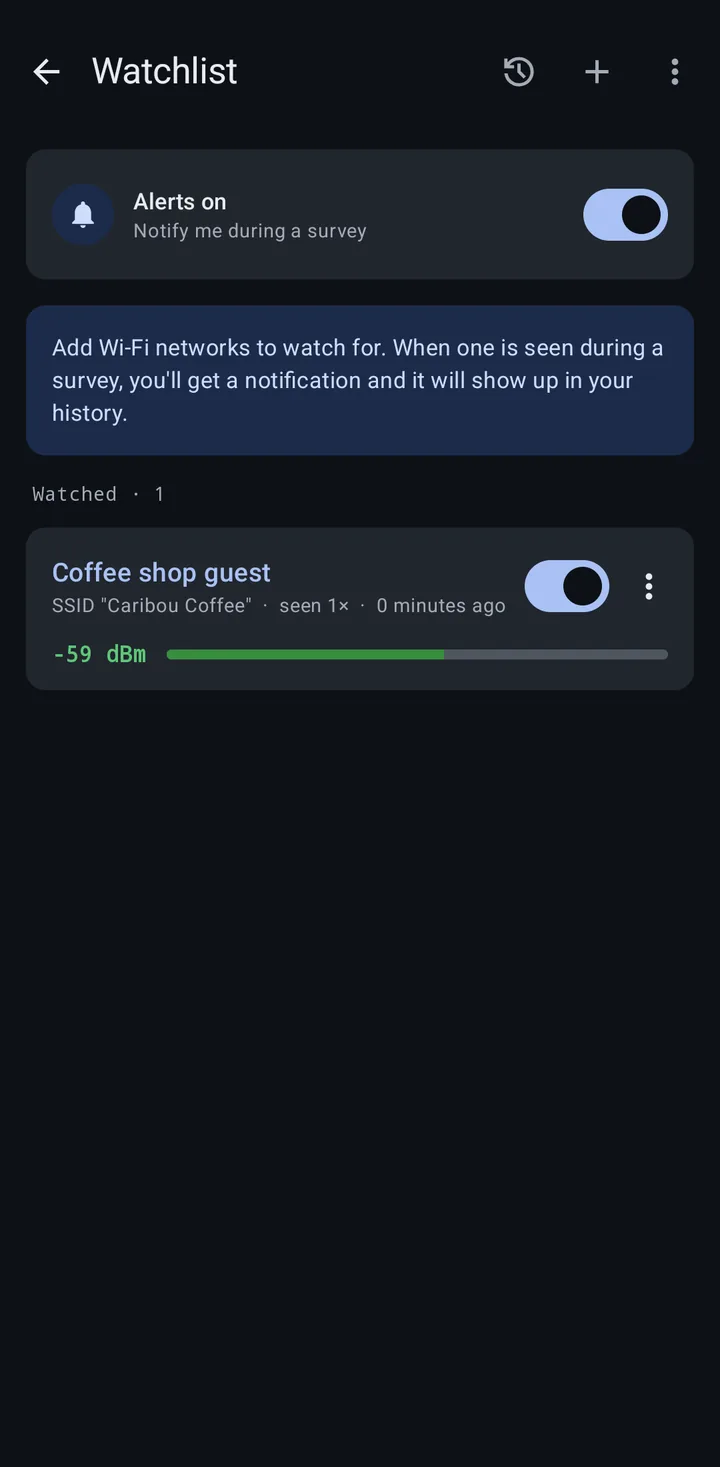
The top bar has History, Add to watchlist (+), and More options, which holds Clear all (removes every watched network and its history).
The first card is the Watchlist alerts switch for the whole feature. It reads Alerts on or Alerts are turned off. The same switch is Watchlist alerts in Settings, under Watchlist, and it is off until you turn it on, add a network from Wi-Fi network details, or import a list from a link. If Android notifications are blocked for the app, the card says so; sightings are still recorded to your history.
Each watched network gets a row (“Watched · 1” counts them) with:
- its display name, and the SSID (“SSID “Caribou Coffee"") or BSSID it watches
- how many times it was seen (“seen 3×”) and when it was last seen, or “not seen yet”
- the signal of the latest sighting
- a switch to turn alerts for that one network off and on without removing it
- a More options button with Remove, which also removes that network’s history
Adding a network
Section titled “Adding a network”Tap Add to watchlist (+) in the top bar, or Add network while the list is empty:
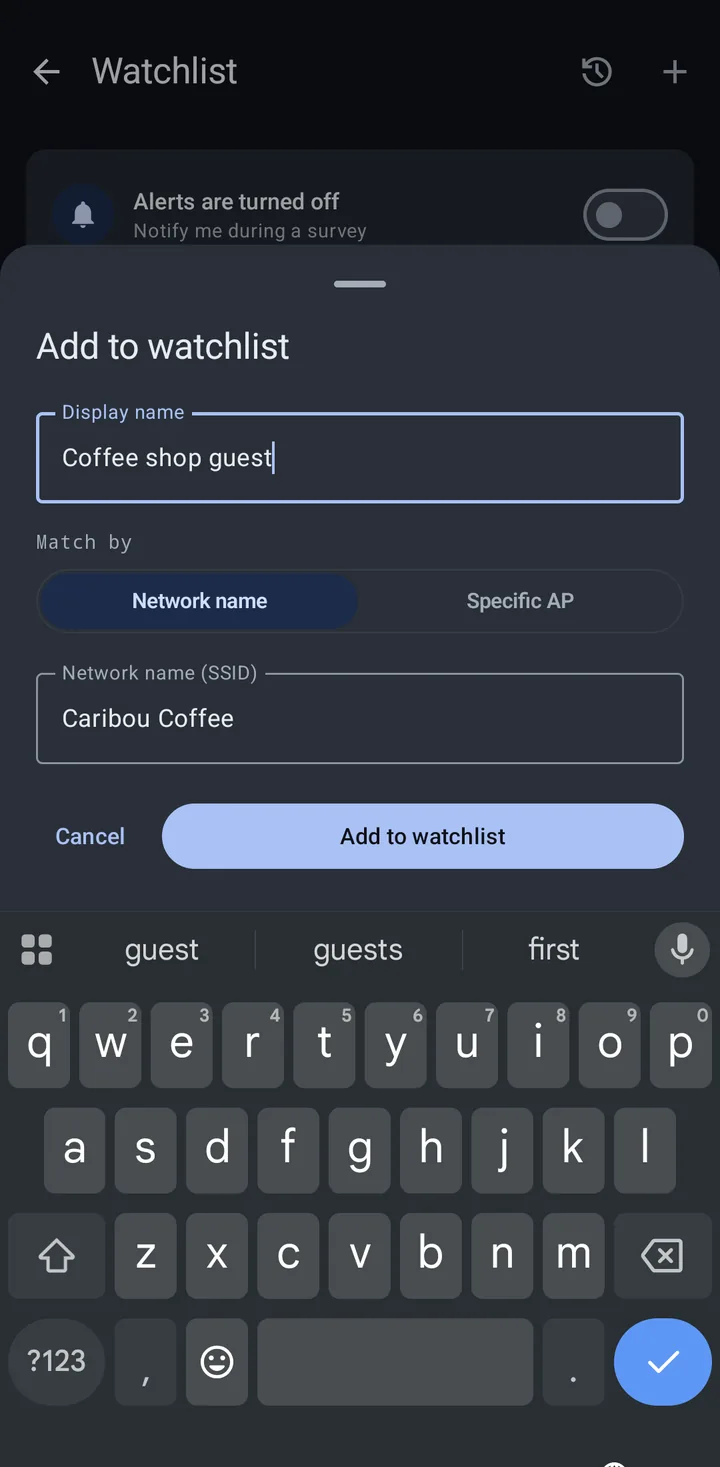
- Optionally enter a Display name for the entry.
- Under Match by, choose:
- Network name to watch for an SSID on any access point
- Specific AP to watch one access point by its MAC address (BSSID)
- Enter the Network name (SSID) or the MAC address (BSSID), and tap Add to watchlist.
Names and MAC addresses match without regard to case. A network you already watch cannot be added twice.
You can also add a network from its Wi-Fi network details page: tap Watch in the watchlist row to open the same sheet, already filled in. Adding from there also turns on watchlist alerts if they were off. For a network you already watch, the row reads On watchlist with a View button.
To fill the watchlist from a shared link, see Watchlist deep links. An entry added by hand watches one identifier; an imported entry can carry both an SSID and a BSSID, and then matches only when both are seen together.
Alerts
Section titled “Alerts”When a watched network comes into range, you get a high-priority notification titled “Watched network nearby”, such as “MyNetwork is nearby (-58 dBm)”. Tapping it opens the watchlist History.
To avoid alert fatigue, the watchlist alerts when a network appears after it has been gone for a while, not on every scan. A network missing from a single scan does not count as gone, so access points that flicker in and out will not spam you. After an alert, the same network does not alert again for 15 minutes.
History
Section titled “History”Every alert is recorded as a sighting. Open History from the Watchlist page’s top bar.
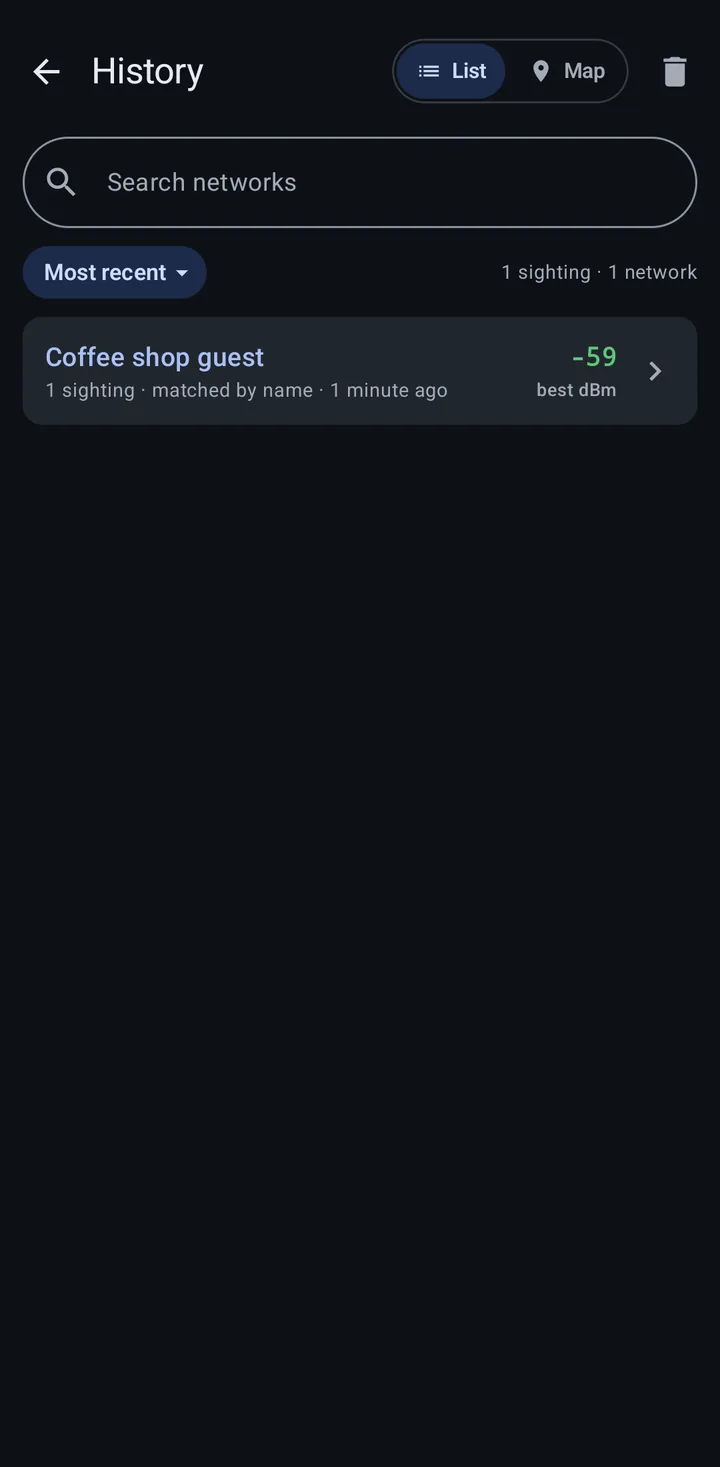
- Sightings are grouped by watched network, with the number of sightings, whether it matched by name or AP, when it was last seen, and the best signal.
- Search networks, and sort by Most recent, Strongest, or Most seen.
- Switch between List and Map. Sightings without a recorded location are not on the map, and the map needs a connection to load.
- The trash button is Clear history, which removes all sightings but keeps your watched networks.
Tap a network to open its sighting details: a map and a list kept in sync, so tapping a pin highlights its sighting and tapping a sighting highlights its pin. Sort the sightings by Strongest first or Newest first, and clear just that network’s history from there.
Each sighting records the time, SSID, BSSID, signal strength, and the location when one was available.
History is kept for 90 days.
Streaming over MQTT
Section titled “Streaming over MQTT”If you stream survey data to an MQTT broker, the watchlist can stream too. Two kinds of watchlist messages are published while the app is connected to the broker:
- Match events (
watchlist_match_message): sent when a watched network is seen, with the location and signal strength when available, the entry’s display name (or the network name if none is set), and whether the SSID or the BSSID matched. Matches are de-duplicated the same way as alerts, so each message is one appearance of a network, not one message per scan. - Watchlist state (
watchlist_entry_message): a full snapshot of your watchlist, sent when the app connects to the broker and whenever the list changes, so the server always knows the device’s current list. A device that has never had a watchlist entry sends nothing.
Streaming is controlled by the Stream over MQTT switch in Settings, under Watchlist. It is on by default, and changes take effect right away, even while connected.
- Match events follow the same rules as alerts: they are only sent while watchlist alerts are on, for the scans described in When networks are matched.
- Turning watchlist alerts off pauses match events, but the watchlist state still streams, so your server’s view of the list stays current.
- The message formats are documented in the Network Survey Messaging API.
Privacy
Section titled “Privacy”Your watchlist and its sighting history are stored on your device. Nothing about your watchlist leaves the device unless you stream to an MQTT broker with Stream over MQTT on, in which case your watched networks (SSIDs, BSSIDs, and display names) and match events are sent to the broker you set up. Turn off Stream over MQTT to keep the watchlist on the device while still streaming other survey data.
Related
Section titled “Related”- MQTT streaming: connection setup and topics
- Watchlist deep links: share and import watchlists with a URL
- Wi-Fi networks: the Wi-Fi list and details
- Wi-Fi SSID exclusion: leaving networks out of your data
- Privacy policy: data handling