Finding your way around
Network Survey has four tabs along the bottom of the screen: Survey, Signals, Map and More.
The four tabs
Section titled “The four tabs”Survey
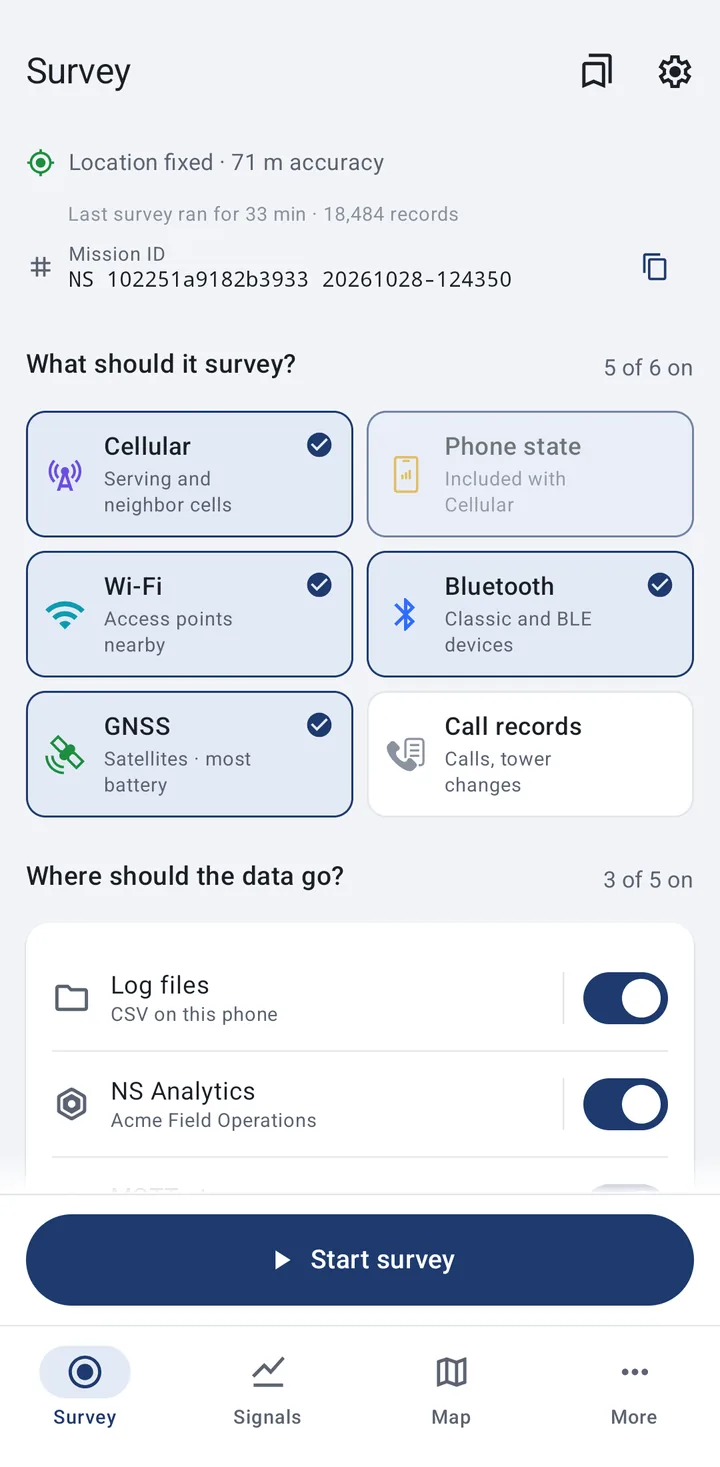
Section titled “Survey”Where you set up, start and stop the survey: what to record, where it goes, and how a running survey is doing. The top bar has Saved setups (while Ready) and the gear for Settings. See The Survey tab.
Signals
Section titled “Signals”Live views of what the radios see, under four sub-tabs: Cellular, Wi-Fi, Bluetooth and GNSS. GNSS has two pages, Status and Sky.
The views work whether or not a survey is recording. Only a survey saves or sends records: with no survey running, what you see is a live view and nothing is kept. A strip above each view shows the scan interval, or Survey paused while the survey is paused.
See Cellular, Wi-Fi, Bluetooth and GNSS.
Cell towers around you and, with the My survey points layer, where your surveys have been. Survey points are recorded only for surveys that send to Community databases or NS Analytics. See Map.
Everything else: Settings, each destination’s page, the tools, and help.
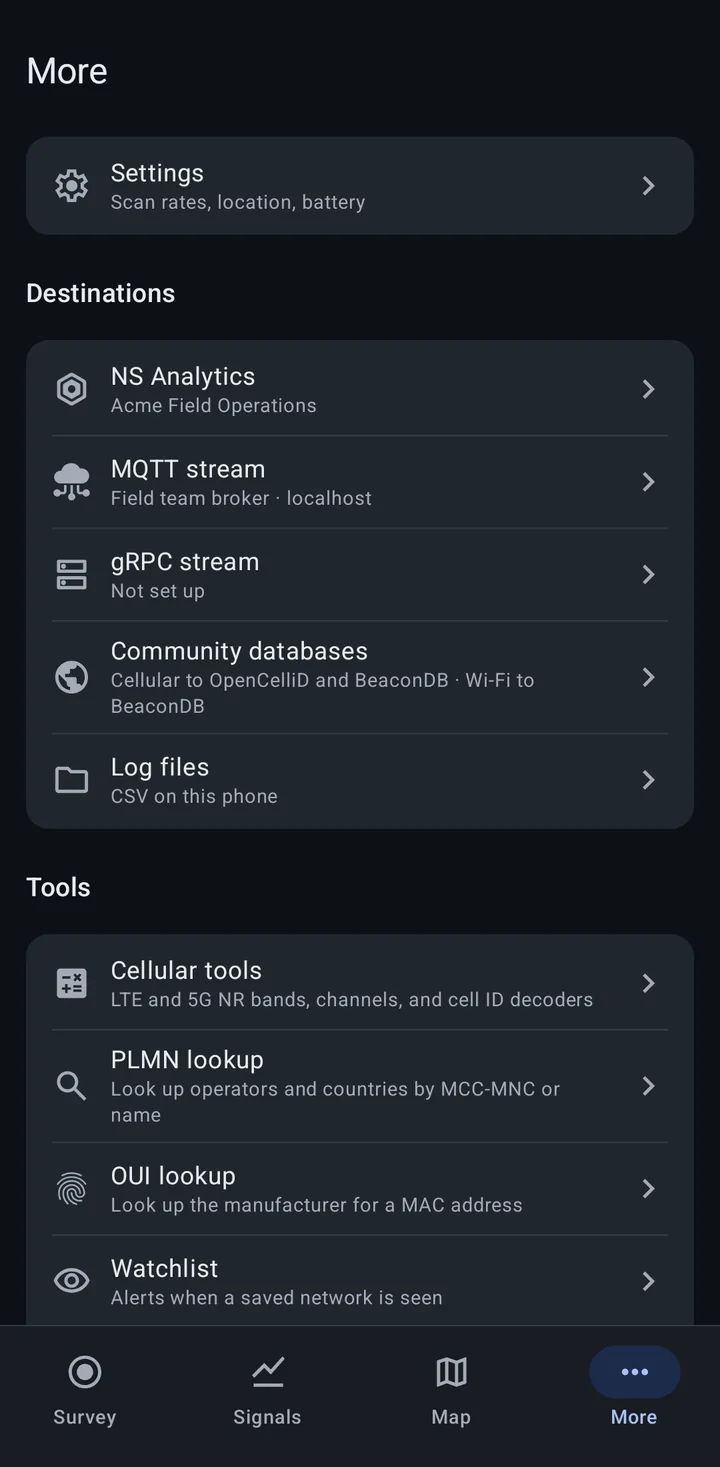
Settings (“Scan rates, location, battery”) comes first. You can also open Settings from the gear on the Survey tab. See App settings.
Destinations lists each destination with the same state line as on the Survey tab. Tap one to set it up or check on it:
A destination your organization turns off is not listed. On a managed phone the group also has Organization settings (“Everything your organization sets on this phone”); see Managed configuration (MDM).
Hardware: NS Scout, an optional board that can take over as the phone’s Wi-Fi radio. It reads “Optional board for more Wi-Fi detail” until you pair one, then shows the Scout’s name and status. See NS Scout on Android. Hidden when your organization doesn’t allow NS Scout.
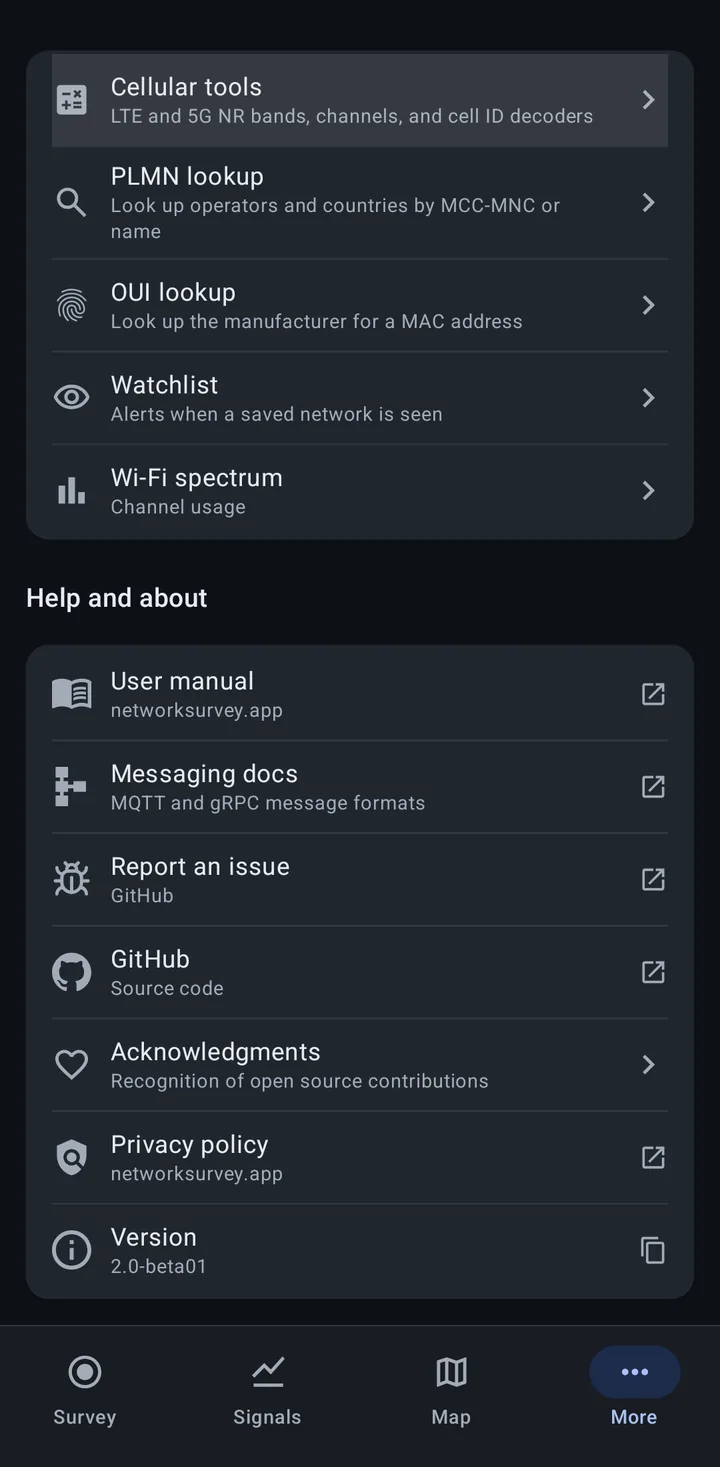
Tools:
- Cellular tools: LTE and 5G NR bands, channels, and cell ID decoders. See Cellular tools.
- PLMN lookup: look up operators and countries by MCC-MNC or name. See PLMN lookup.
- OUI lookup: look up the manufacturer for a MAC address. See OUI lookup.
- Watchlist: alerts when a saved network is seen. See Wi-Fi watchlist.
- Wi-Fi spectrum: channel usage. See Wi-Fi spectrum.
Help and about: User manual (this site), Messaging docs (the MQTT and gRPC message formats), Report an issue and GitHub (both open GitHub), Acknowledgments, Privacy policy, and Version. Tap Version to copy the app name and version, which is handy for a bug report.
Every tab sits on top of the Survey tab. Pressing Back on Signals, Map or More takes you to Survey, and Back on Survey leaves the app. Each tab remembers where you were in it.
Landscape and large screens
Section titled “Landscape and large screens”In landscape, and on any window at least 600 dp wide such as a tablet, the tabs move from the bottom bar to a rail along the side of the screen. In a short window, the top bars and the bar that holds Start and Stop take less height. On the Survey tab, the top bar slides away as you scroll down.
At very large font sizes the tab labels are hidden and only the icons show.
Theme and accent color
Section titled “Theme and accent color”Both are in Settings, in the Phone group.
- Theme: System default (the default, follows the phone’s dark theme setting), Light or Dark.
- Accent color: the color of buttons, switches and selected items. Choose from Navy (the default), Sky, Slate, Graphite, Teal, Indigo, Violet, Green and Orange. The app changes color as soon as you pick one. A few small parts that Android draws itself keep the default Navy.
Related
Section titled “Related”- The Survey tab
- Upgrading from 1.x: where everything from 1.x moved