First run
The first time you open Network Survey on a fresh install, it shows three short cards before the tabs. They explain what the app does, ask for the permissions it needs, and ask where your data should go. The dots near the bottom show which card you are on, and Back returns to the previous card.
First run shows once. After you finish or skip it, the app opens straight to the Survey tab. If you press Back on the first card, you leave the app and first run shows again next time.
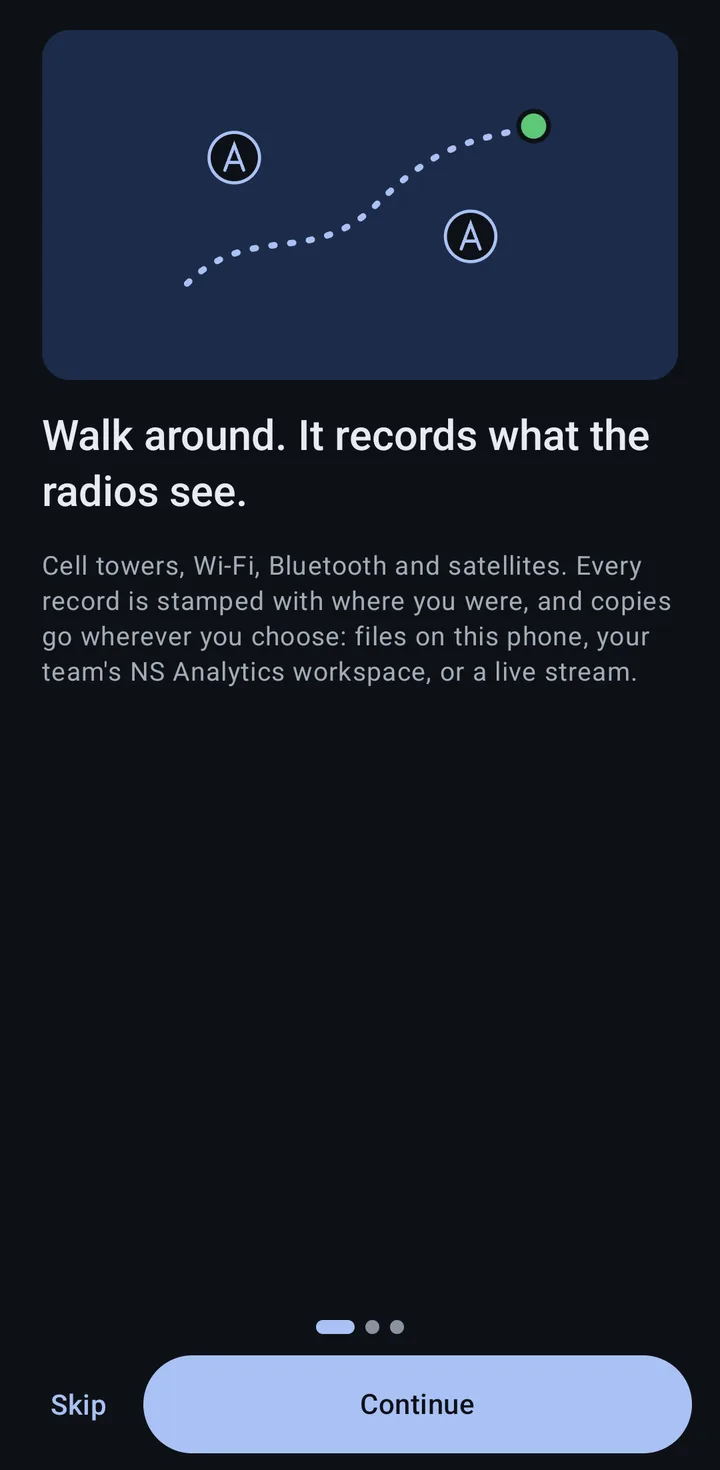
Card 1: what the app does
Section titled “Card 1: what the app does”Walk around. It records what the radios see. “Cell towers, Wi-Fi, Bluetooth and satellites. Every record is stamped with where you were, and copies go wherever you choose: files on this phone, your team’s NS Analytics workspace, or a live stream.” Tap Continue.
Card 2: permissions, and why
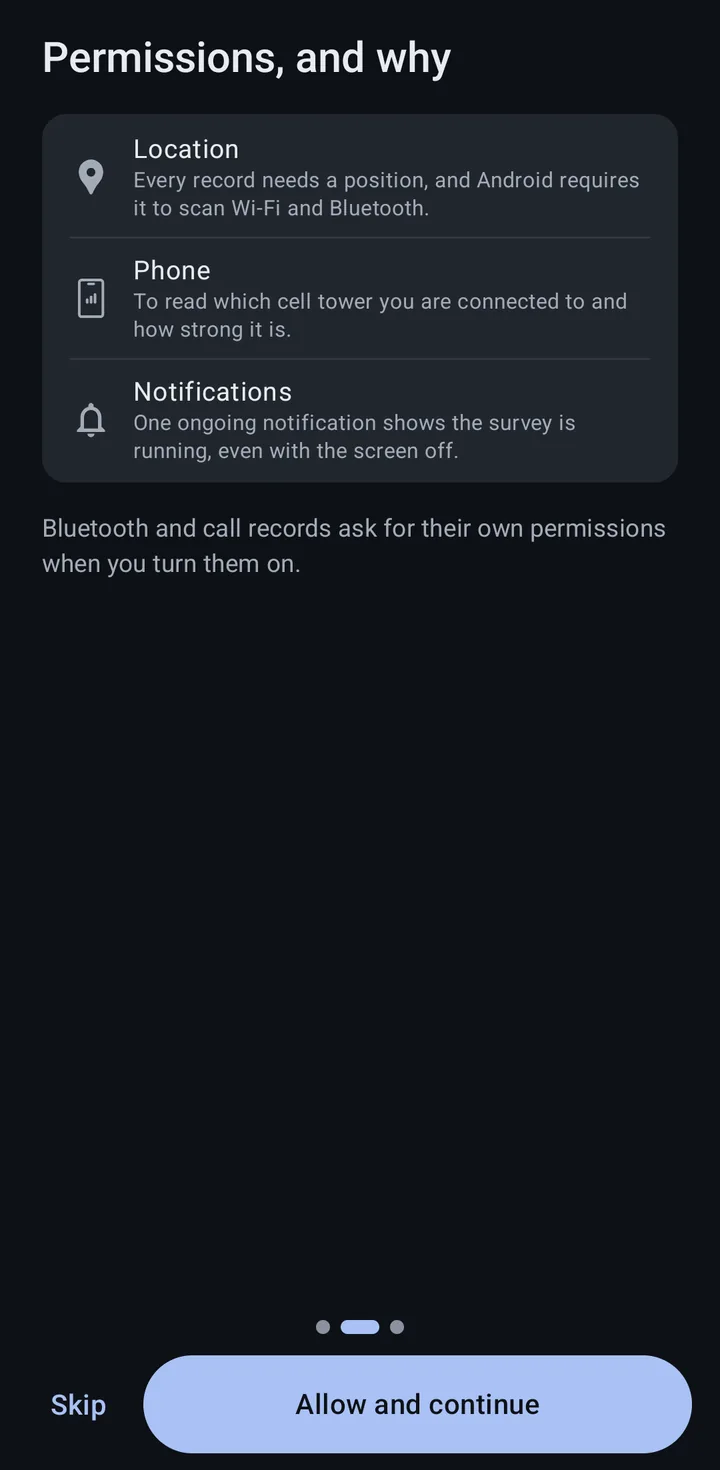
Section titled “Card 2: permissions, and why”The second card lists the permissions the app asks for when it starts, with the reason for each. It only lists the ones your Android version uses:
| Permission | Why the app needs it | Asked on |
|---|---|---|
| Location | Every record needs a position, and Android requires it to scan Wi-Fi and Bluetooth. | Every Android version |
| Phone | To read which cell tower you are connected to and how strong it is. | Every Android version |
| Notifications | One ongoing notification shows the survey is running, even with the screen off. | Android 13 and newer |
| Storage | To save log files on this phone. | Android 12 and older |
Tap Allow and continue and Android shows its own permission dialog for each one that is not allowed yet. If every permission is already allowed, the button reads Continue instead.
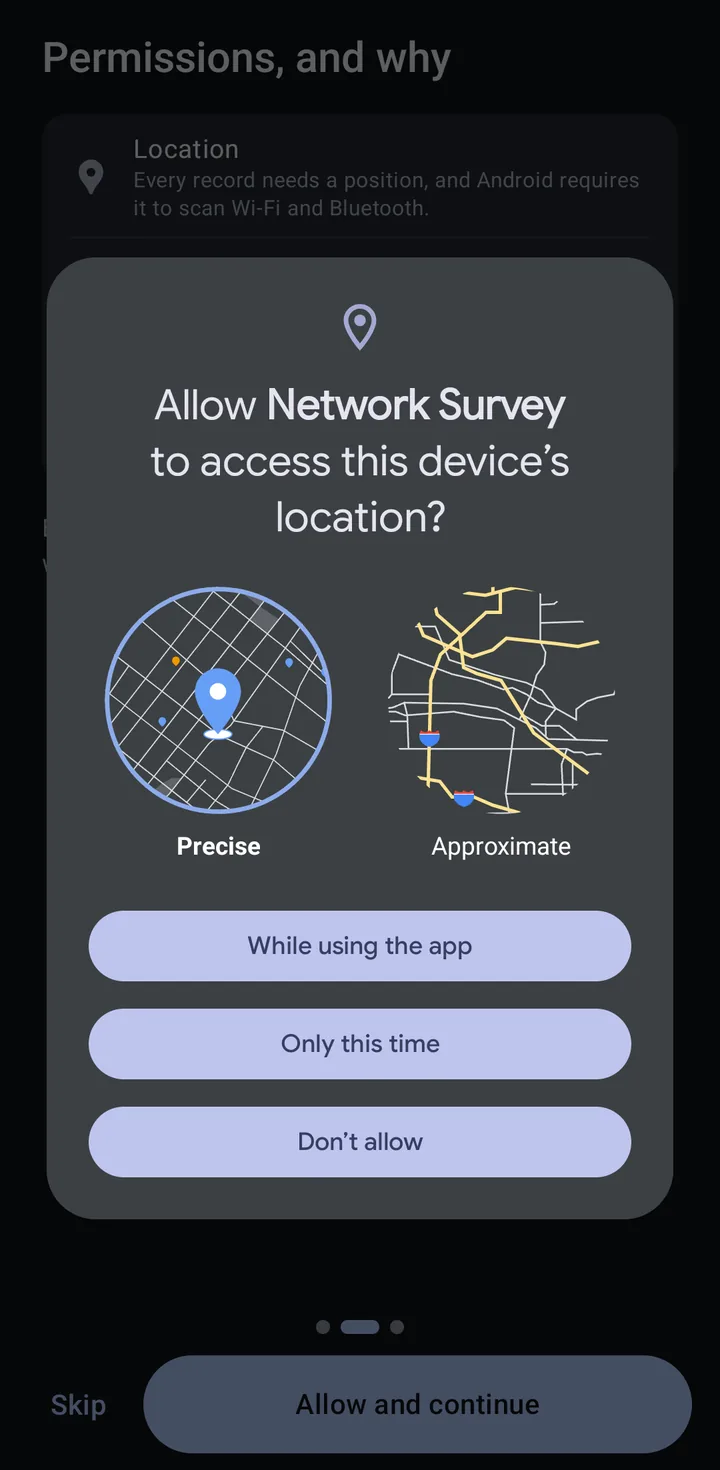
For location, choose Precise and While using the app. With only approximate location, the Cellular, Wi-Fi and GNSS views on the Signals tab ask you to allow precise location.
If location is turned off on the phone, the card says “Location is off on this phone.” with a Turn on button that opens Android’s location settings.
Two things are not asked here:
- Bluetooth and call records ask for their own permissions when you turn them on.
- Background location is only asked for while “Start survey automatically” is turned on in Settings. The app needs it to start the survey when the phone restarts. See Background location.
For the full list, see Required permissions.
Card 3: where should the data go?
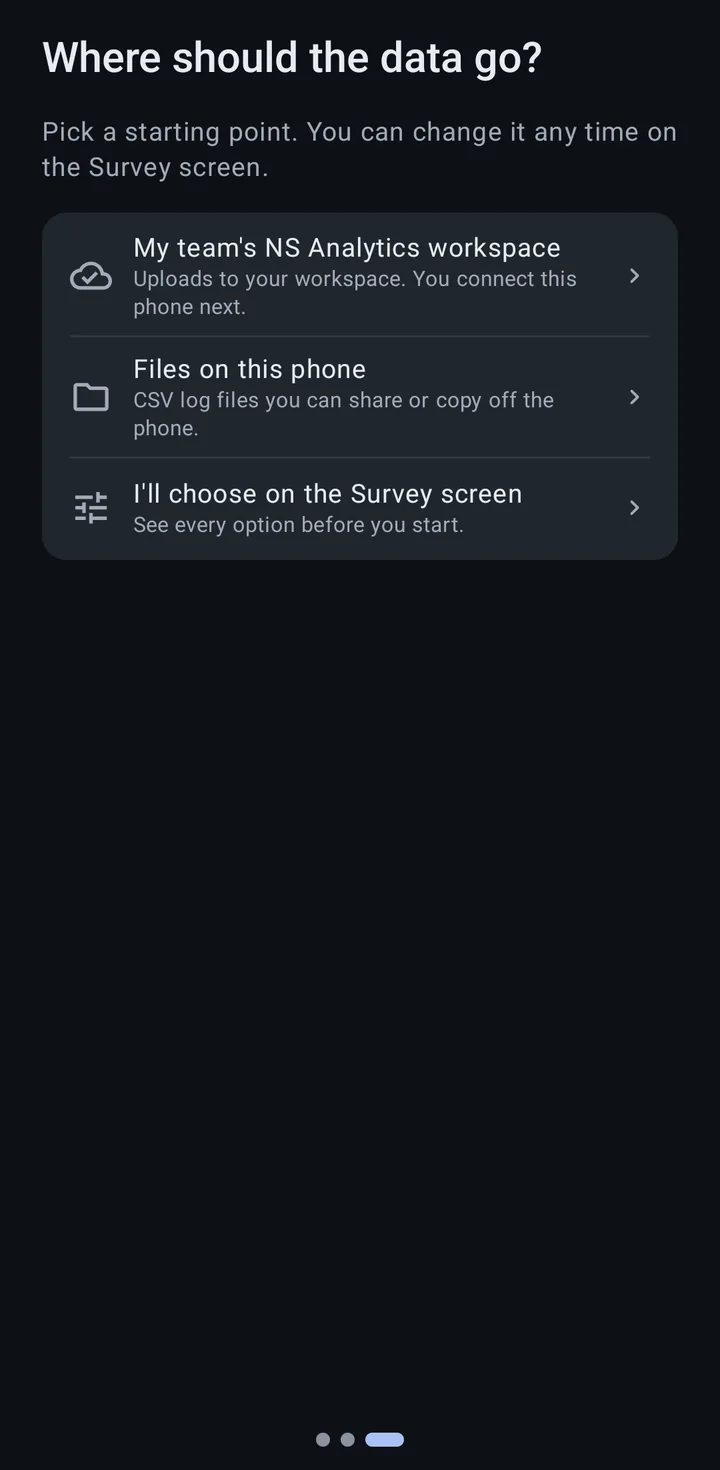
Section titled “Card 3: where should the data go?”“Pick a starting point. You can change it any time on the Survey screen.” Each choice ends first run:
| Choice | What it does |
|---|---|
| My team’s NS Analytics workspace | Sends the survey to NS Analytics, then opens the Connect to NS Analytics page so you can connect this phone by scanning the QR code from your workspace. See Connect a phone to NS Analytics. |
| Files on this phone | Sends the survey to Log files: CSV files on this phone that you can share or copy off. You can press Start survey right away. |
| I’ll choose on the Survey screen | Changes nothing, so the survey keeps the starting setup described below. |
Whichever you pick, the survey records Cellular, Phone state and Wi-Fi to begin with. You can turn record types on and off on the Survey tab.
If you skip, or choose on the Survey screen
Section titled “If you skip, or choose on the Survey screen”Skip (on the first two cards) and I’ll choose on the Survey screen both leave the starting setup as it is: Cellular, Phone state and Wi-Fi, sent to NS Analytics.
A new phone is not connected to NS Analytics yet, so Start survey stays grayed out. The NS Analytics row shows Connect, and the line above the button reads “Connect NS Analytics or turn on Log files to start”, with two buttons:
- Use Log files turns Log files on and NS Analytics off, so you can start right away.
- Connect NS Analytics opens the page where you connect this phone to your workspace.
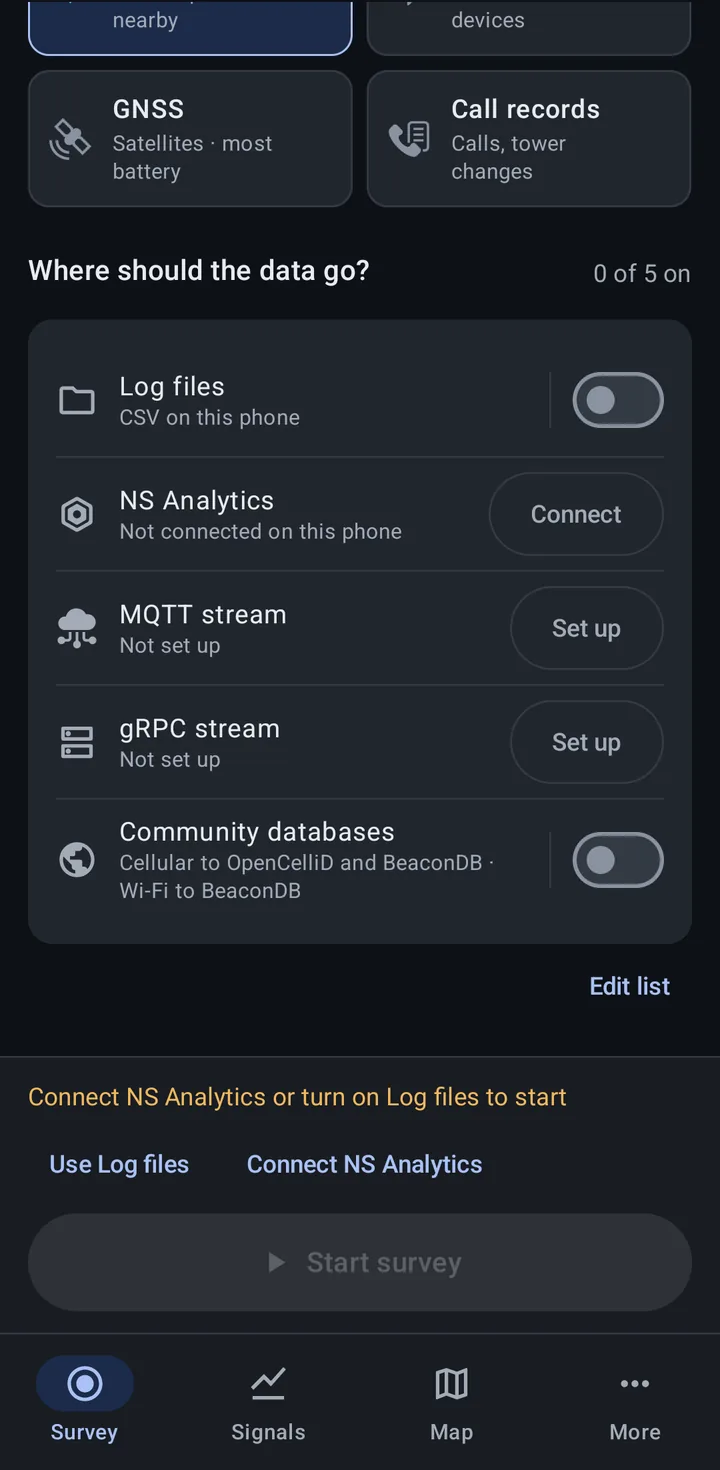
If you skipped the permissions card, Android asks for the missing permissions when the tabs open.
Next, see Your first survey to record to log files, or When Start is grayed out for the other reasons Start can be blocked.
When first run is skipped
Section titled “When first run is skipped”The app skips first run for good, and opens straight to the Survey tab, when the setup is already decided:
- The phone is managed by an organization. Any managed configuration (MDM) counts. The organization’s configuration decides the survey. See Managed configuration.
- The phone is already registered with NS Analytics.
- A registration link opened the app, such as the link on the Devices page of an NS Analytics workspace. The app opens the NS Analytics page to connect the phone.
A phone that is upgraded from Network Survey 1.x never sees first run. It sees a one-time welcome instead; see Upgrading from 1.x.