Upgrading from 1.x
Network Survey 2.0 rebuilds the whole app around one survey with one Start survey and one Stop survey. When 2.0 installs over a 1.x version, a one-time migration turns your old settings into the new survey, so nothing looks reset. Then a one-time welcome shows what your survey became.
The welcome
Section titled “The welcome”The first time 2.0 opens after the upgrade, it shows Welcome to the new Network Survey instead of the tabs:
- “A survey now has one Start and one Stop. Pick what to record and where it goes on the Survey tab.”
- Your survey: one sentence with what your survey records and where it goes, for example “Will record Cellular, Phone state and Wi-Fi to Log files.”
- “It starts on its own when the phone starts or the app opens.” when your survey is set to start automatically.
- “Your MQTT broker is saved. Turn on MQTT stream to use it; it gets the same record types as the rest of the survey.” when you had a broker set up but it did not join the survey (see below).
- A short tour of the tabs: Signals has the live Cellular, Wi-Fi, Bluetooth and GNSS views, Map shows towers and your survey points, and More has the destinations, tools such as the Watchlist, and Settings.
Tap Got it to open the Survey tab. The welcome does not show again. On a phone an organization manages, it is skipped, because the organization decides the survey.
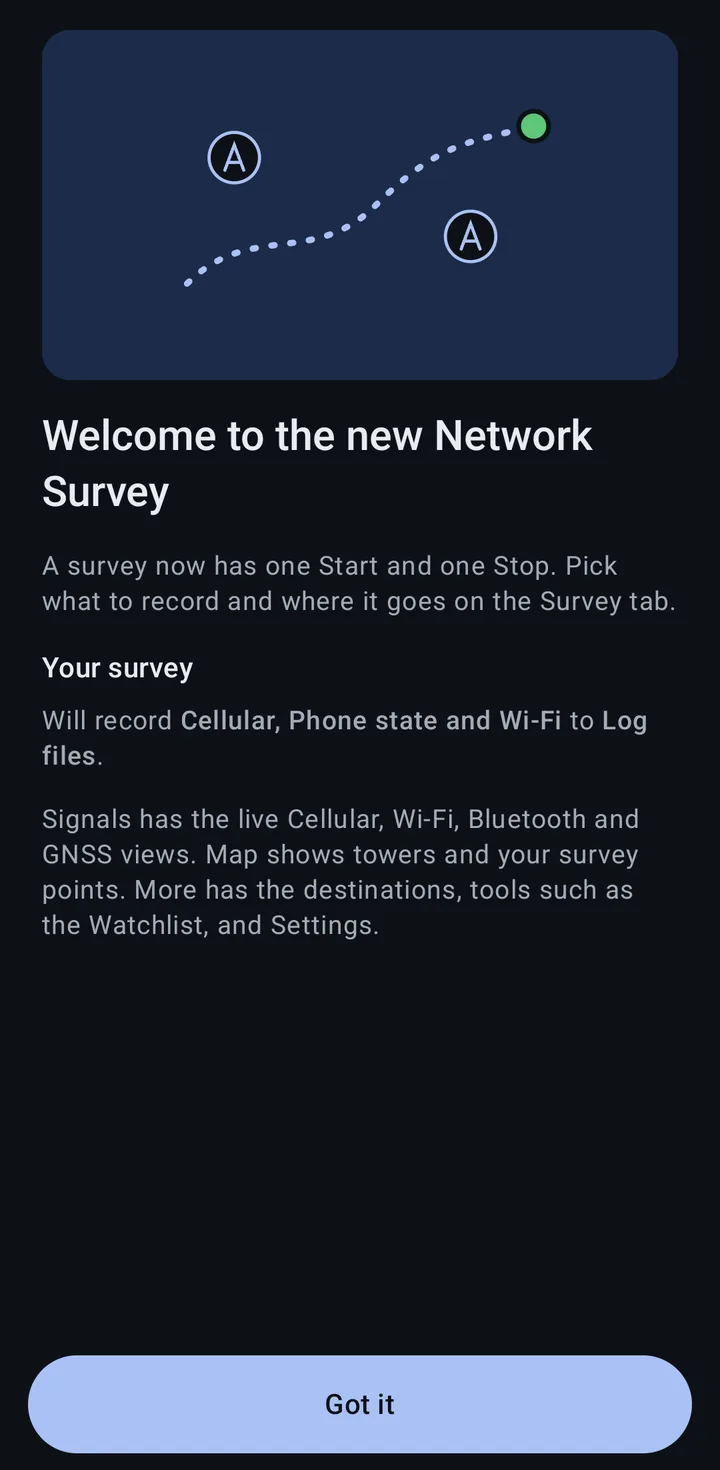
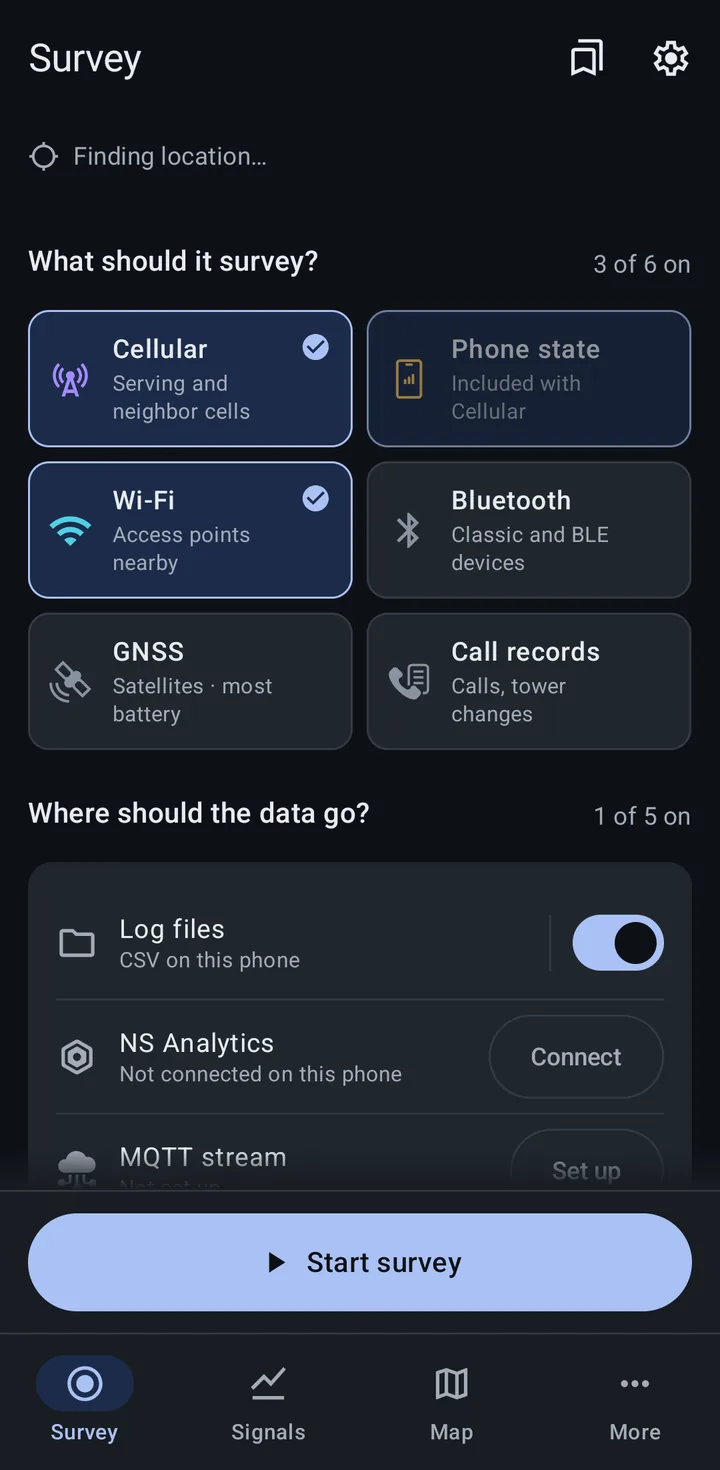
These two screenshots come from a 1.x phone that had nothing set to start on its own, so its survey went to Log files with the default record types.
An upgraded phone never sees the first run cards.
What carries over
Section titled “What carries over”Your survey
Section titled “Your survey”In 1.x, the destinations had their own record type switches, and file logging, MQTT and the community uploads each had their own auto start. In 2.0 there is one survey, so the migration builds it from what your phone used to start on its own:
- Auto start switches (“Auto Start Cellular Logging”, “Auto Start Wi-Fi Logging” and the others): the record types that were on are sent to Log files.
- “MQTT Start at Boot” with a broker set up: MQTT stream joins the survey, with the record types its stream switches sent.
- The OpenCelliD and BeaconDB “Auto Start Survey on Phone Reboot”: Community databases joins the survey.
If any of these were on, “Start survey automatically” is turned on in Settings, so the survey starts on its own when the app opens and when the phone restarts. Log files only joins when a file logging auto start switch was on, so a phone that only streamed or uploaded at boot never starts writing files.
If nothing was set to start on its own, the survey goes to Log files, or, on a phone registered with NS Analytics, to NS Analytics with the record types its old NS Analytics switches sent. Either way, nothing starts until you press Start survey.
When none of that gives the survey any record types, it gets Cellular, Phone state and Wi-Fi. The exception is a phone whose only auto start was MQTT with every stream switch off, which only sent device status: it keeps sending only device status when it starts on its own, and the Current setup panel shows “Device status only” while it records.
On a phone an organization manages, the organization’s configuration replaces the record types and destinations it manages. If the organization blocks every destination the survey used to start on its own, the upgrade does not turn on “Start survey automatically”.
The “NS Analytics” saved setup
Section titled “The “NS Analytics” saved setup”A phone registered with NS Analytics also gets a saved setup named NS Analytics, with the record types its old NS Analytics switches sent. Pick it from Saved setups (the bookmarks button at the top of the Survey tab) to send those record types to NS Analytics. The phone stays connected to its workspace.
Your MQTT broker
Section titled “Your MQTT broker”The single broker from 1.x becomes a saved broker on the MQTT stream page (More > MQTT stream), named after its host, with its login, and selected. It only joins the survey if “MQTT Start at Boot” was on. Otherwise, turn on the MQTT stream row on the Survey tab when you want to use it. See MQTT.
Everything else
Section titled “Everything else”Settings that still exist keep their values, such as the scan rates, the location source and the Watchlist. The log rollover size moved to the Log files page as “Start a new file every”.
What was removed
Section titled “What was removed”- The Dashboard. The Survey tab replaces it.
- The side menu. Its pages are on the More tab. See Finding your way around.
- The Survey Monitor. The Recording card on the Survey tab shows the timer, record counts and Mission ID, and the Map tab shows the serving cell and your survey points. The survey path line is gone; the “My survey points” map layer shows where your surveys recorded. See Mission ID and the survey notification.
- GeoPackage logging. Log files are CSV only. See GeoPackage below.
- The per-destination record type switches (the MQTT and gRPC stream switches and the NS Analytics record type switches). Every destination now gets the same record types, as long as it can take them: Call records only go to Log files, and the Community databases only take Cellular and Wi-Fi. To keep a record type out of the survey, turn its tile off on the Survey tab. Phone state now follows Cellular for every destination while “Include phone state with cellular” is on.
- The separate auto start switches. One setting, “Start survey automatically”, starts the whole survey when the app opens and when the phone restarts.
- The map button on the Cellular screen. Use the Map tab.
- The Survey Monitor’s own map settings. The Map tab uses the Map settings.
Translations whose meaning changed were removed, so some screens show English until they are translated again on Weblate.
Where did it go?
Section titled “Where did it go?”| In 1.x | In 2.0 |
|---|---|
| Dashboard | Survey tab |
| Location card on the Dashboard | The location line at the top of the Survey tab |
| Local File Logging Control card | Log files row on the Survey tab, and More > Log files |
| NS Analytics card and its Start and Stop | NS Analytics row on the Survey tab, then Start survey. The page is More > NS Analytics |
| OpenCelliD & BeaconDB Upload card | Community databases row on the Survey tab, and More > Community databases |
| MQTT Connection card, MQTT Broker Connection in the menu | MQTT stream row on the Survey tab, and More > MQTT stream |
| gRPC Connection in the menu | gRPC stream row on the Survey tab, and More > gRPC stream |
| Mission ID card | The Recording card on the Survey tab, and under “Last survey ran for” after you stop |
| Survey Monitor | The Recording card on the Survey tab, and the Map tab |
| Keep the screen on in the Survey Monitor | Settings > Phone > “Keep the screen on while recording” |
| New tower alerts switch on the Survey Monitor | Settings > OpenCelliD and BeaconDB uploads > “New tower alerts” |
| Bottom bar: Cellular, Wi-Fi, Bluetooth, GNSS | Signals tab |
| Tower Map, and the map button on the Cellular screen | Map tab |
| Tower Map Settings | Settings > Map and lookups > “Map settings” |
| Side menu | More tab |
| Cellular Tools, PLMN Lookup, OUI Lookup, Watchlist in the menu | More > Tools |
| User Manual, Messaging Docs in the menu | More > Help and about |
| Auto Start Cellular Logging and the other auto start switches, MQTT Start at Boot, Auto Start Survey on Phone Reboot | Settings > Survey > “Start survey automatically” |
| Log File Type | Removed. Log files are CSV only |
| Log Rollover Size (MB) | More > Log files > “Start a new file every” |
| Location Provider | Settings > Phone > “Location source” |
| MDM Override | Settings > Fleet > “Override organization settings” (only on a managed phone) |
| Enable Watchlist | Settings > Watchlist > “Watchlist alerts” |
| MQTT and gRPC stream switches, NS Analytics record type switches | Removed. The record type tiles on the Survey tab decide what every destination gets |
| Unregister Device (NS Analytics) | More > NS Analytics > “Disconnect this phone” |
| Settings > About (Version, Privacy policy) | More > Help and about. Tap Version to copy it |
Settings is also one tap away from the gear at the top of the Survey tab.
GeoPackage
Section titled “GeoPackage”Network Survey 2.0 no longer writes GeoPackage files. Log files are CSV, one file per record type (one per technology for cellular) plus device status, in Download/NetworkSurveyData/csv. If 1.x was set to write GeoPackage files, or CSV and GeoPackage, the Log files destination now writes CSV, and the “Log File Type” setting is gone.
GeoPackage files that 1.x already wrote stay on the phone, in Download/NetworkSurveyData. The upgrade does not delete them, but the Log files page does not list them, because it only shows the csv folder. Open them with a file manager or copy them off the phone over USB.
Each CSV record has latitude and longitude columns. See the CSV format and Log files.