Mission ID and the survey notification
Mission ID
Section titled “Mission ID”A Mission ID names one survey. The app stamps it on the survey’s records, so you can find and filter that survey’s data later in NS Analytics, in your Log files, or wherever your MQTT or gRPC stream lands.
It reads NS, then an ID for this phone, then the date and time it was created, for example NS 102251a9182b3933 20261028-124350.
When a new one starts
Section titled “When a new one starts”- Pressing Start survey creates a new Mission ID, as long as the survey sends to something other than Community databases. If you stop and start again, you get a new one.
- Change on a running survey keeps the same Mission ID, as long as something other than Community databases stays in the survey.
- A survey that sends only to Community databases does not get one, because OpenCelliD and BeaconDB uploads do not include the Mission ID. If you use Change to add another destination to such a survey, that is when it gets its Mission ID.
- After Stop survey, the last Mission ID stays on the Survey tab until the next survey replaces it, even after the app restarts.
Where to find and copy it
Section titled “Where to find and copy it”- While recording: on the Recording card on the Survey tab, under the record count.
- After Stop: on the Survey tab, under the “Last survey ran for…” line.
- When the survey starts: in the message “Survey started · Mission ID” followed by the ID.
Tap the copy button next to the ID to put it on the clipboard. Android 13 and later show their own confirmation; on older versions the app says “Mission ID copied”.
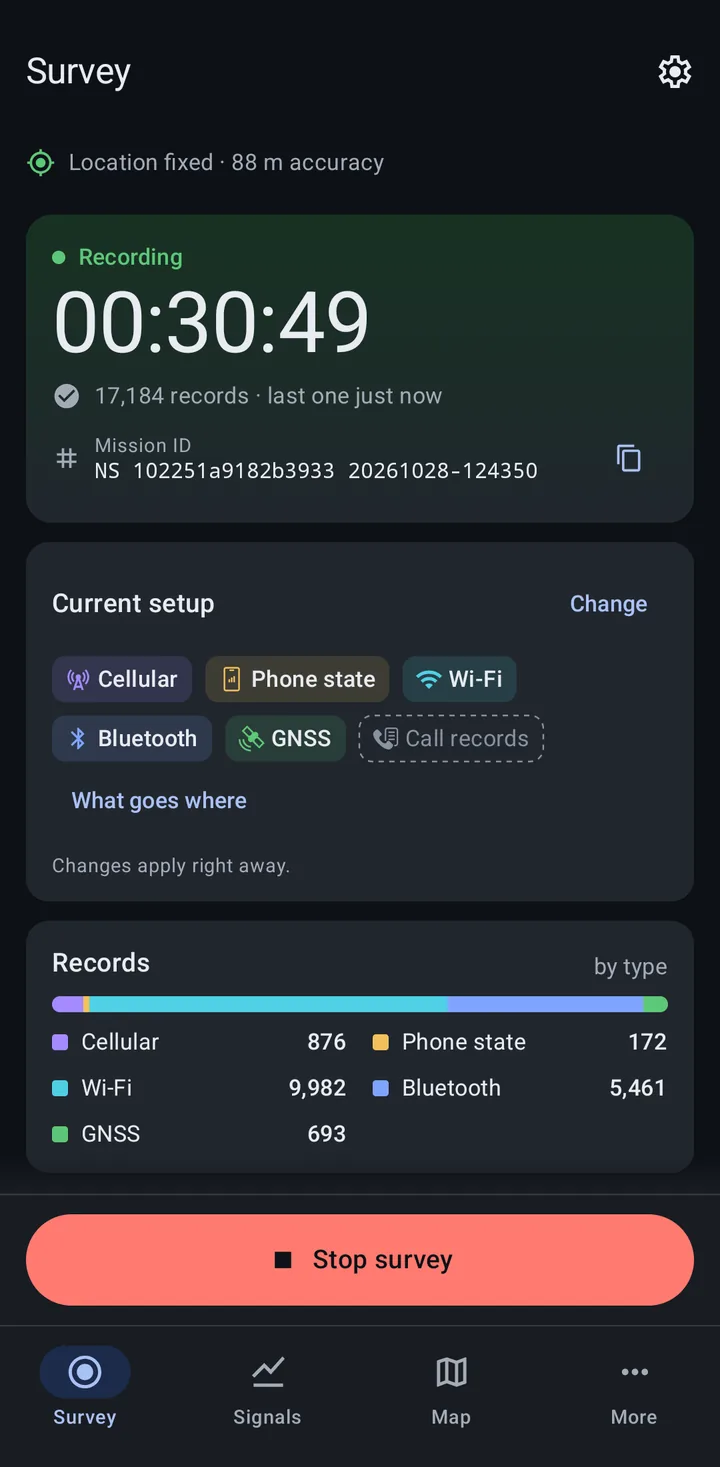
The Mission ID is not shown in the notification.
Survey notification
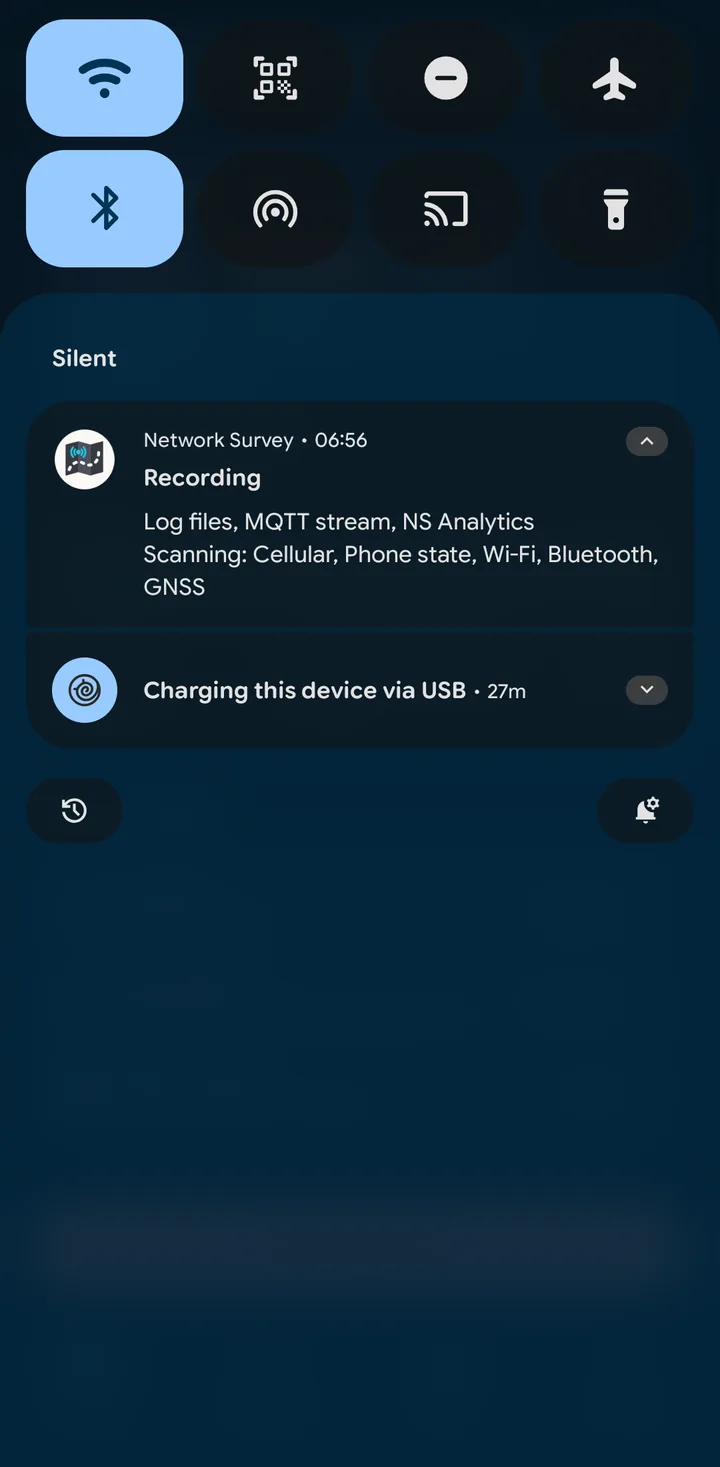
Section titled “Survey notification”While the app’s survey service is running, Network Survey keeps one ongoing notification, so you can check on the survey from the notification shade or lock screen without opening the app. Tapping it opens the Survey tab.
The title
Section titled “The title”The title is the survey’s state, in the same words as the Survey tab. When more than one applies, the first in this list wins:
- Paused: scanning is paused on purpose. The text says why (see Health lines). It resumes on its own when the cause clears.
- No records for N min: a survey is running but no records have arrived for a while. This is the sign to check on the phone. The title goes back to Recording at the next check after records arrive again.
- Recording: a survey is running.
- Ready: no survey is recording, for example while the app is open between surveys.
While a survey runs, the notification also shows how long it has been running.
Collapsed and expanded
Section titled “Collapsed and expanded”Collapsed, the notification shows one line: the most important health line if there is one, otherwise the destinations records are going to, for example “Log files, MQTT stream, NS Analytics”. Destinations are always listed in this order: Log files, MQTT stream, gRPC stream, Community databases, NS Analytics.
Expand it to see everything:
- Every health line that applies, most important first.
- The destinations.
- Scanning: and the record types being scanned, for example “Scanning: Cellular, Phone state, Wi-Fi”.
- Using your own settings, when you have chosen to use your own settings instead of your organization’s.
Health lines
Section titled “Health lines”| Line | What it means |
|---|---|
| Battery low (N%) | Scanning paused because the battery reached your pause threshold (Settings > Pause scanning on low battery). |
| Network interrupted | Scanning paused because MQTT stream is the only destination and its queue filled up while the broker was unreachable. |
| MQTT messages dropping, then File logging continues | The MQTT queue is full, so new MQTT messages are thrown away while scanning and the other destinations carry on. File logging continues shows only when Log files is part of the survey. |
| A destination and a status word, such as “MQTT stream: Reconnecting” | Records for that destination are held on the phone or are not arriving. The words are the same as on the Survey tab’s Where it’s going list. NS Analytics is not listed here; check its row on the Survey tab. |
| Something the survey could not start, such as “Bluetooth needs a permission” | Part of the survey was left out. Open the Survey tab to fix it. |
When “No records for N min” appears
Section titled “When “No records for N min” appears”The app checks once a minute. A survey counts as stalled when no new record has arrived for five minutes, or for three times your longest scan interval in use if that is longer. A paused survey never counts as stalled. The minutes in the title go up in steps of five.
Swiping it away
Section titled “Swiping it away”On Android 14 and later you can swipe the notification away. While a survey is recording and not paused, it comes back within about a minute, so you keep a sign that the survey is still running.
Related
Section titled “Related”- The Survey tab: Start, Stop, Change, and where records are going
- Battery optimization: keep the survey running with the screen off
- Scan rates: the intervals the stall check uses
- NS Analytics: find a survey’s data by Mission ID