The Survey tab
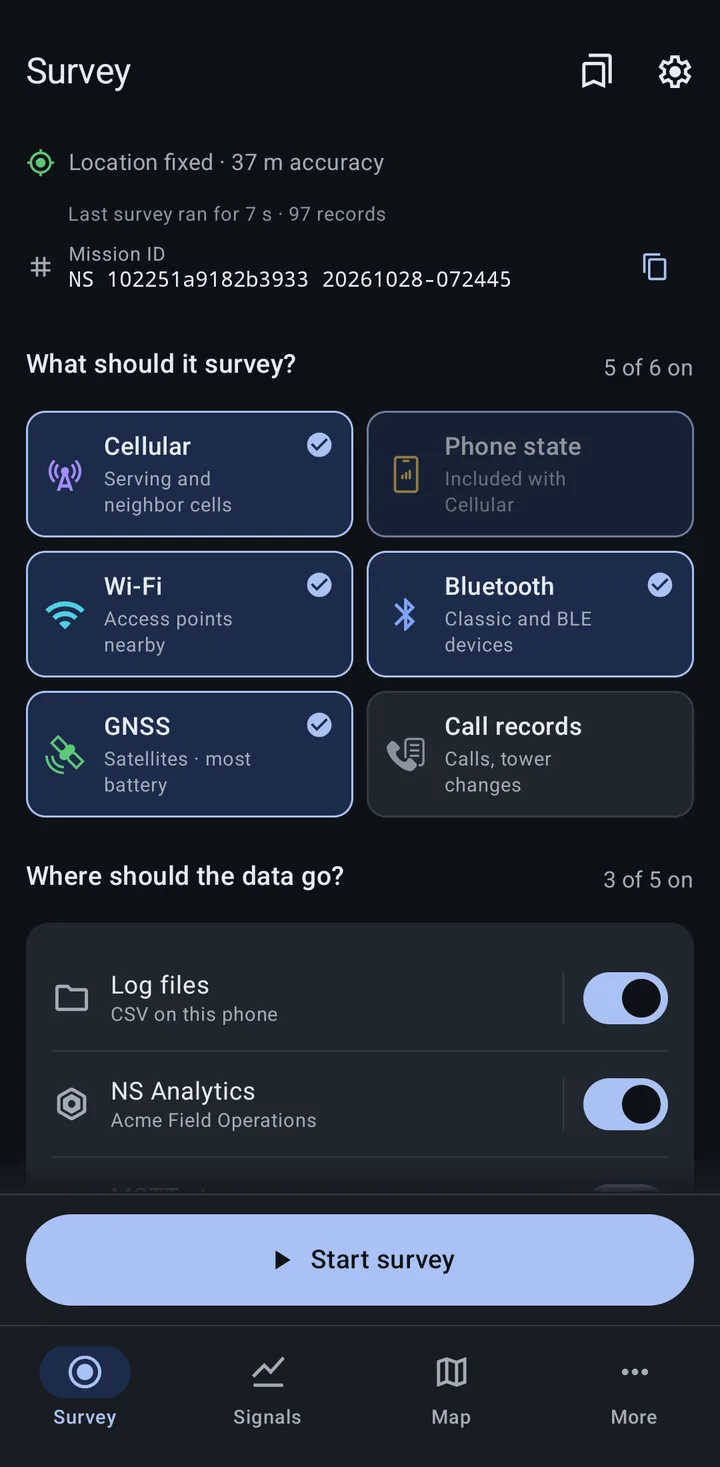
The Survey tab is the first tab in the app. It has two states. Ready is the form you fill in before a survey. Recording shows the survey while it runs. The top bar has the Saved setups button (Ready only, see Saved setups) and the gear, which opens Settings.
The location line
Section titled “The location line”The line at the top says whether the phone has a location fix:
- Location fixed · N m accuracy: the phone knows where it is, to about N meters.
- Finding location…: waiting for a fix.
- Location is off, with Turn on: the phone’s location setting is off.
- Location permission needed, with Allow: the app does not have the location permission.
The location line never blocks Start. A survey you start without a fix still records.
Last survey and Mission ID
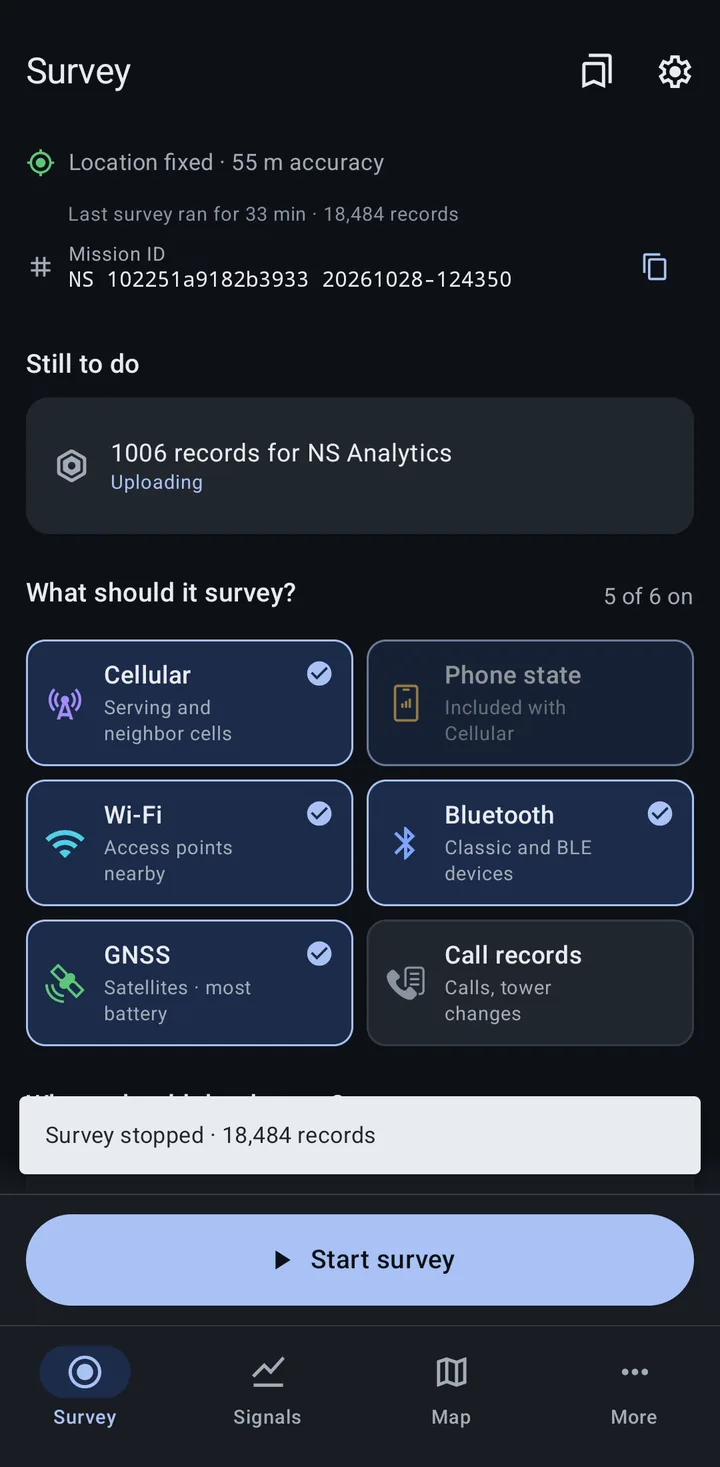
Section titled “Last survey and Mission ID”After a survey, the next line reads Last survey ran for a length of time and a record count, for example “Last survey ran for 33 min · 18,484 records”. Under it is that survey’s Mission ID with a copy button, so you can still look up its data after you stop. A survey that sent only to Community databases has no Mission ID. See Mission ID and the survey notification.
Still to do
Section titled “Still to do”When a finished survey left records on the phone for NS Analytics or Community databases, a Still to do panel lists them, for example “1,006 records for NS Analytics”, with a status line and, when it helps, Upload now. Tap a row to open that destination’s page. The panel goes away by itself once nothing is waiting.
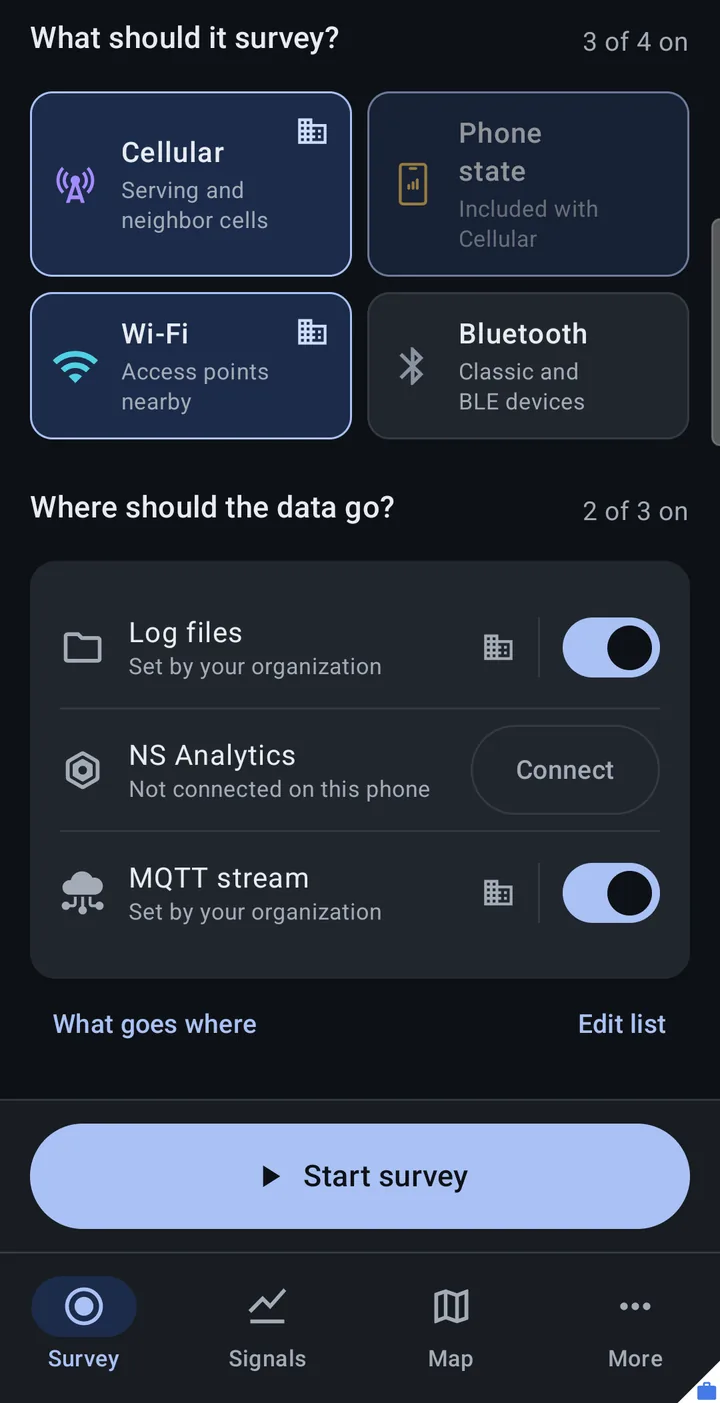
What should it survey?
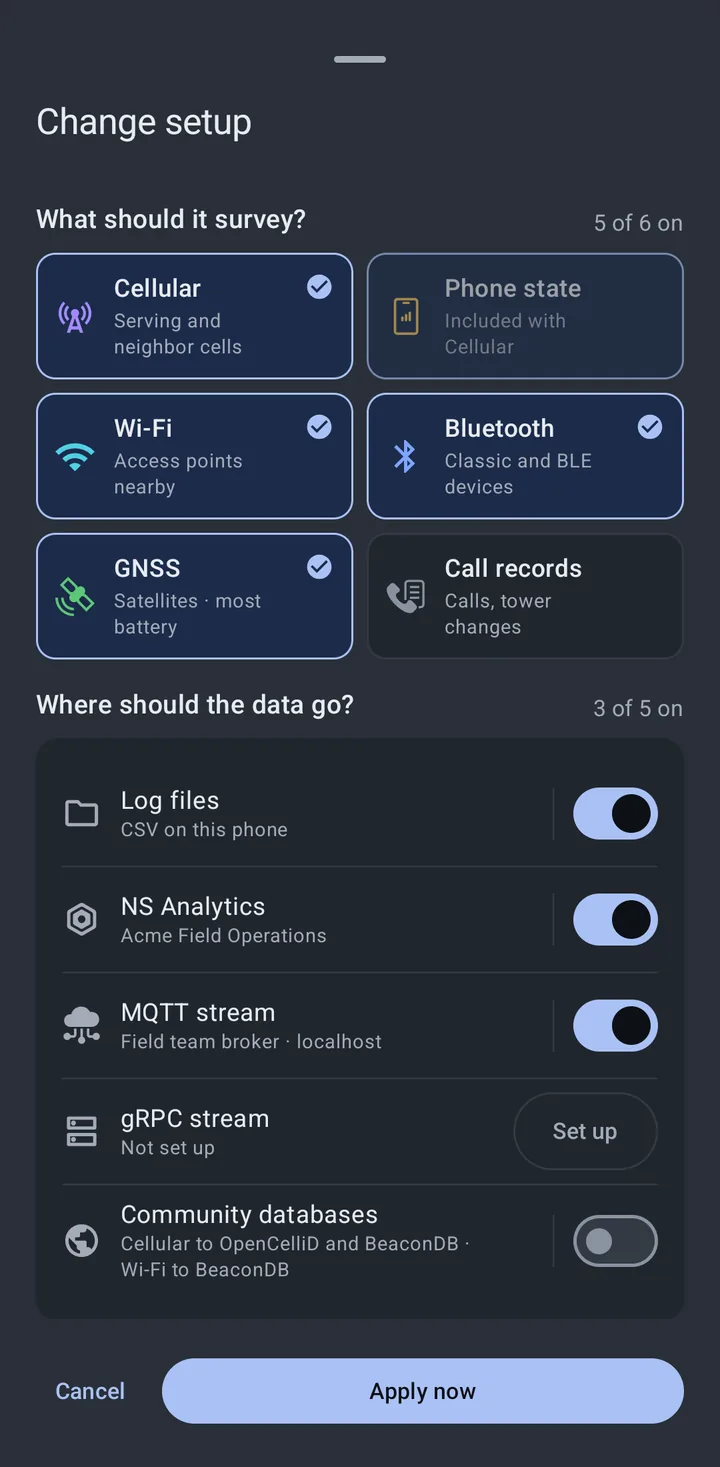
Section titled “What should it survey?”Each record type is a tile. Tap a tile to turn it on or off. An on tile is tinted with the accent color and shows a check mark. The header shows how many are on, for example “5 of 6 on”.
| Tile | Line under it |
|---|---|
| Cellular | Serving and neighbor cells |
| Phone state | What the radio is doing |
| Wi-Fi | Access points nearby |
| Bluetooth | Classic and BLE devices |
| GNSS | Satellites · most battery |
| Call records | Calls, texts, tower changes (CDR build) or Calls, tower changes (Google Play build) |
Phone state is included with Cellular. With the setting Include phone state with cellular on (it is on by default, in Settings under Survey), turning on Cellular also records Phone state. The Phone state tile then reads Included with Cellular and looks dimmed; tapping it explains “Phone state is recorded whenever Cellular is.” Turn that setting off if you want to choose Phone state on its own.
If a tile needs a permission the app does not have yet, turning it on asks for it, and the tile turns on once you allow it. Call records read text messages only in the CDR build; see Call records.
If no destination that is on can take a type you chose, its tile reads Not sent anywhere.
Where should the data go?
Section titled “Where should the data go?”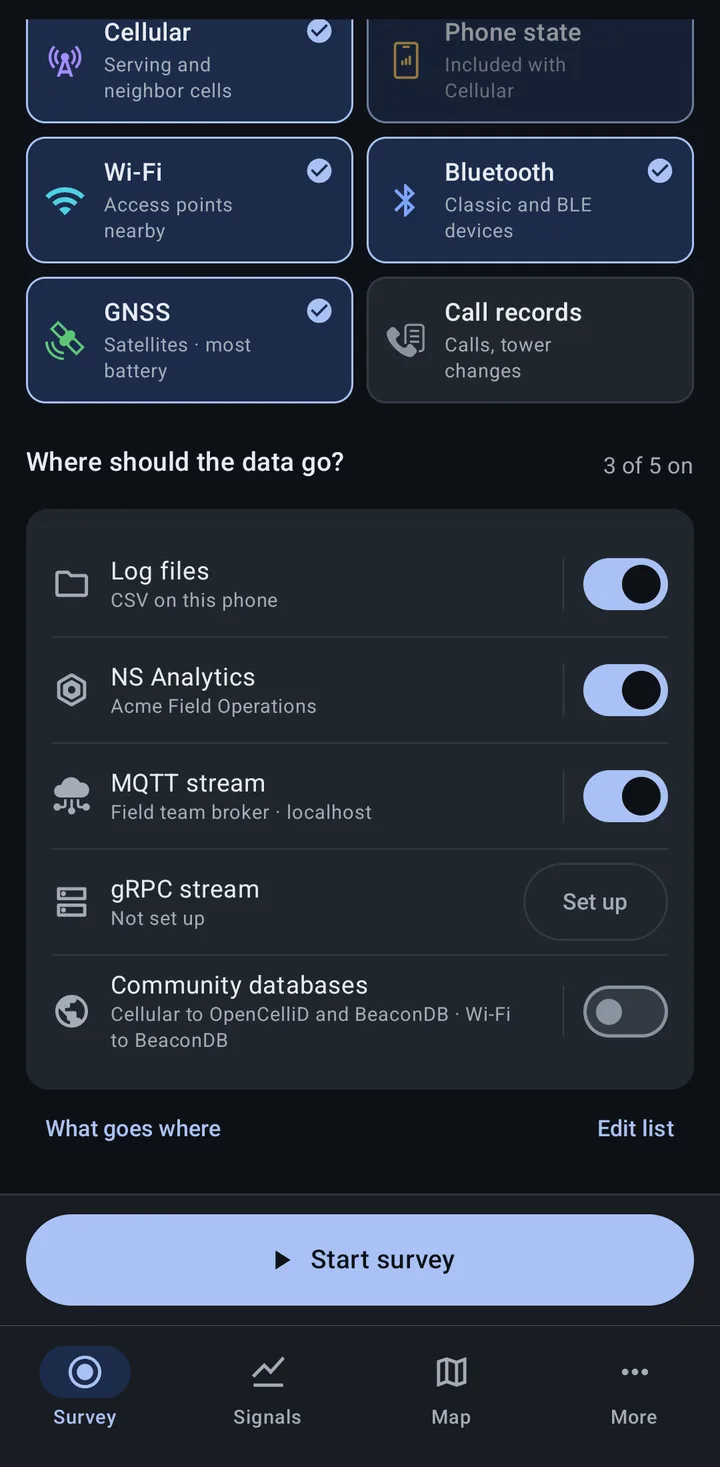
Each destination is a row. The second line says what it is set to:
| Row | Second line |
|---|---|
| Log files | CSV on this phone |
| NS Analytics | Your workspace name (or Connected when the name is not known), or Not connected on this phone |
| MQTT stream | The selected broker, Provided by your organization, Choose a broker, or Not set up |
| gRPC stream | The server address, or Not set up |
| Community databases | What goes where, such as “Cellular to OpenCelliD and BeaconDB · Wi-Fi to BeaconDB”, or Not set up |
A destination that is ready to use has a switch. One that still needs something has a button instead:
- Connect on NS Analytics when this phone is not connected to a workspace.
- Choose on MQTT stream when you have saved brokers but none is selected.
- Set up on a destination that has not been set up yet. For Community databases, that means neither OpenCelliD nor BeaconDB is chosen as an upload target.
A destination only counts as on when it is switched on and ready. Tap anywhere else on a row to open that destination’s page, where you set it up and see its status. A row that is on but gets none of the chosen record types reads Won’t receive anything from this survey.
Each destination has its own page in the manual: Log files, NS Analytics, MQTT stream, gRPC stream and Community databases.
What goes where
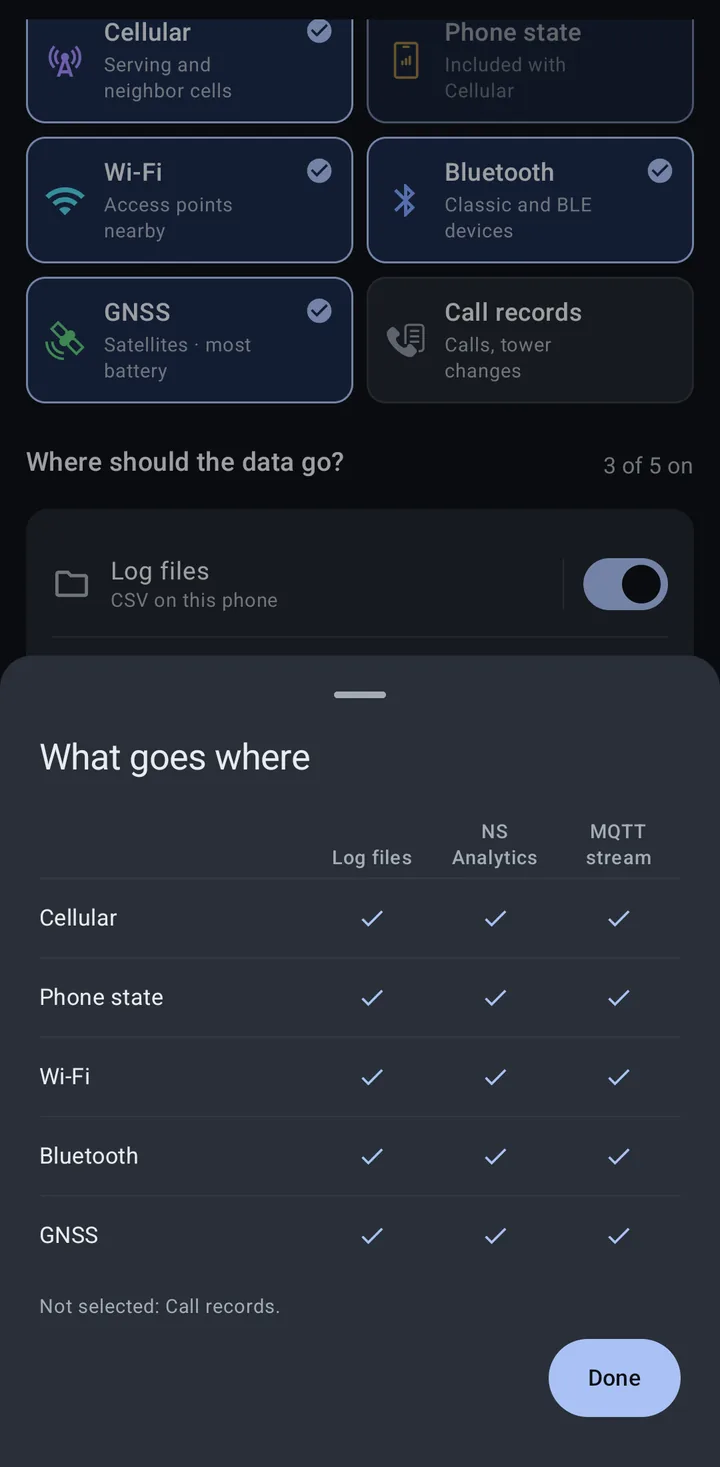
Section titled “What goes where”Every destination that is on gets every record type you chose, except where a destination cannot take a type:
| Record type | Log files | NS Analytics | MQTT stream | gRPC stream | Community databases |
|---|---|---|---|---|---|
| Cellular | Yes | Yes | Yes | Yes | OpenCelliD and BeaconDB |
| Phone state | Yes | Yes | Yes | Yes | No |
| Wi-Fi | Yes | Yes | Yes | Yes | BeaconDB |
| Bluetooth | Yes | Yes | Yes | Yes | No |
| GNSS | Yes | Yes | Yes | Yes | No |
| Call records | Yes | No | No | No | No |
Call records go only to Log files. Community databases take only Cellular and Wi-Fi, and only for the upload targets you chose on the Community databases page. With an NS Scout, Wi-Fi clients and Raw frames have their own rules; see What goes where with a Scout.
Tap What goes where under the rows to see the same table for your current choices. It has a column for each destination that is on (Community databases split into OpenCelliD and BeaconDB) and a row for each record type you chose. A note under it lists the types you did not choose, and, when a type is not sent anywhere and Log files is off, reminds you that Log files takes every record type.
Edit list
Section titled “Edit list”Edit list opens Show on Survey screen, where you can hide destinations you never use. A destination that is on in the current setup cannot be hidden (“On in this setup”). When rows are hidden, the link reads “Edit list · N hidden”.
The warning above Start
Section titled “The warning above Start”Most of the time nothing appears above Start. A warning shows only when part of your choice goes nowhere:
- “Call records won’t be recorded: no place that is on takes it.” (a type you chose that no destination that is on can take)
- “MQTT stream won’t receive anything from this survey.” (a destination that is on but gets none of your types)
You can still start. Check What goes where to see why.
When Start is grayed out
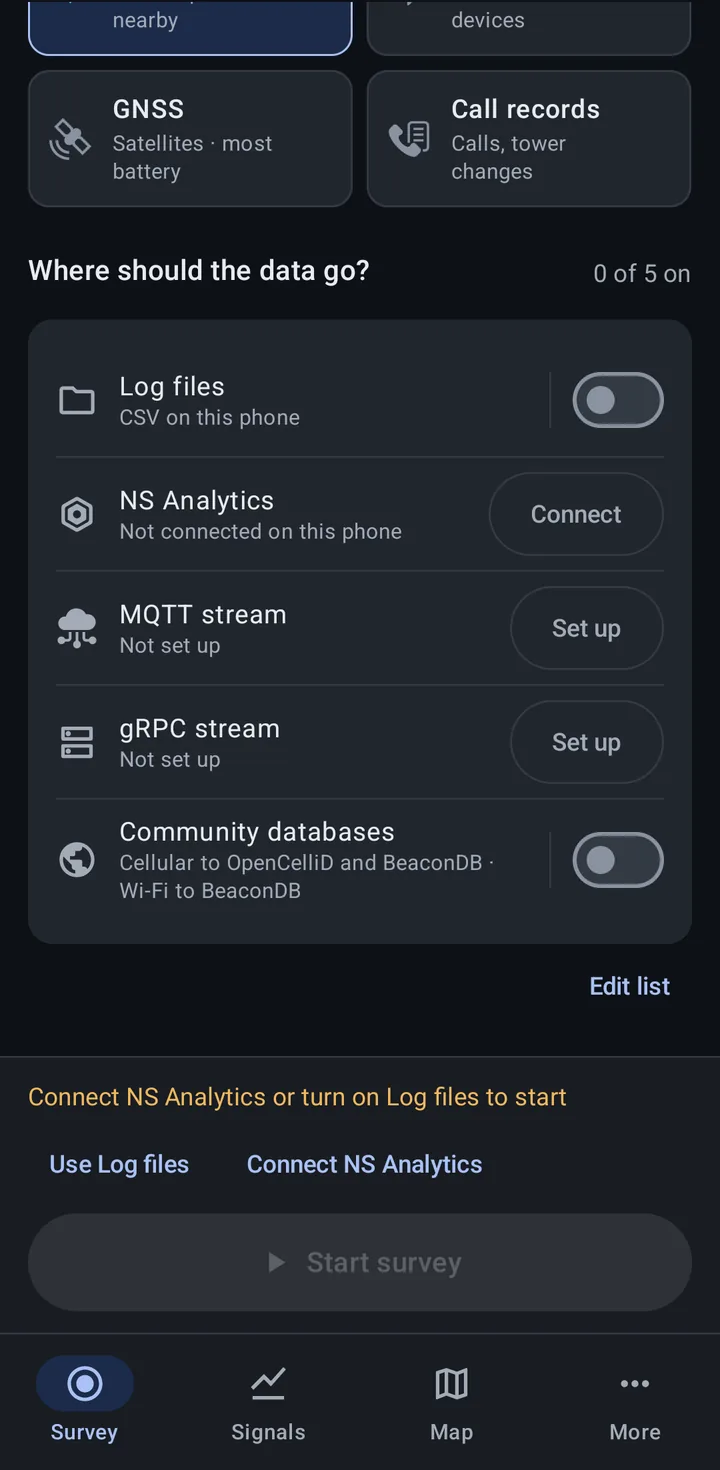
Section titled “When Start is grayed out”When the survey cannot start, the reason sits right above Start survey:
| Reason | What to do |
|---|---|
| Choose at least one thing to survey | Turn on a record type. |
| Turn on a place for the data to go | Switch on a destination. |
| Connect NS Analytics or turn on Log files to start | NS Analytics is chosen but this phone is not connected, and no other destination is on. Tap Use Log files or Connect NS Analytics. |
| Your organization turned off every destination | Ask your administrator. |
| None of the places that are on can take what this survey records | For example, only Call records with only NS Analytics on. Turn on Log files or another record type. |
A fresh install starts with Cellular, Phone state and Wi-Fi going to NS Analytics, so if you skipped the choice during first run, this is the first message you see.
Pressing Start
Section titled “Pressing Start”Right before a survey starts, the app may ask one more question. If battery optimization is still on for Network Survey, it asks Keep surveying with the screen off? (at most once a day). Later and Go to Settings both start the survey; Go to Settings also opens the battery settings. See Battery optimization.
Once it starts, a message confirms it, for example “Survey started · Mission ID” followed by the new ID. If part of the setup could not start, it reads “Survey started · N items skipped” instead, and the items are listed at the top of the screen.
Recording
Section titled “Recording”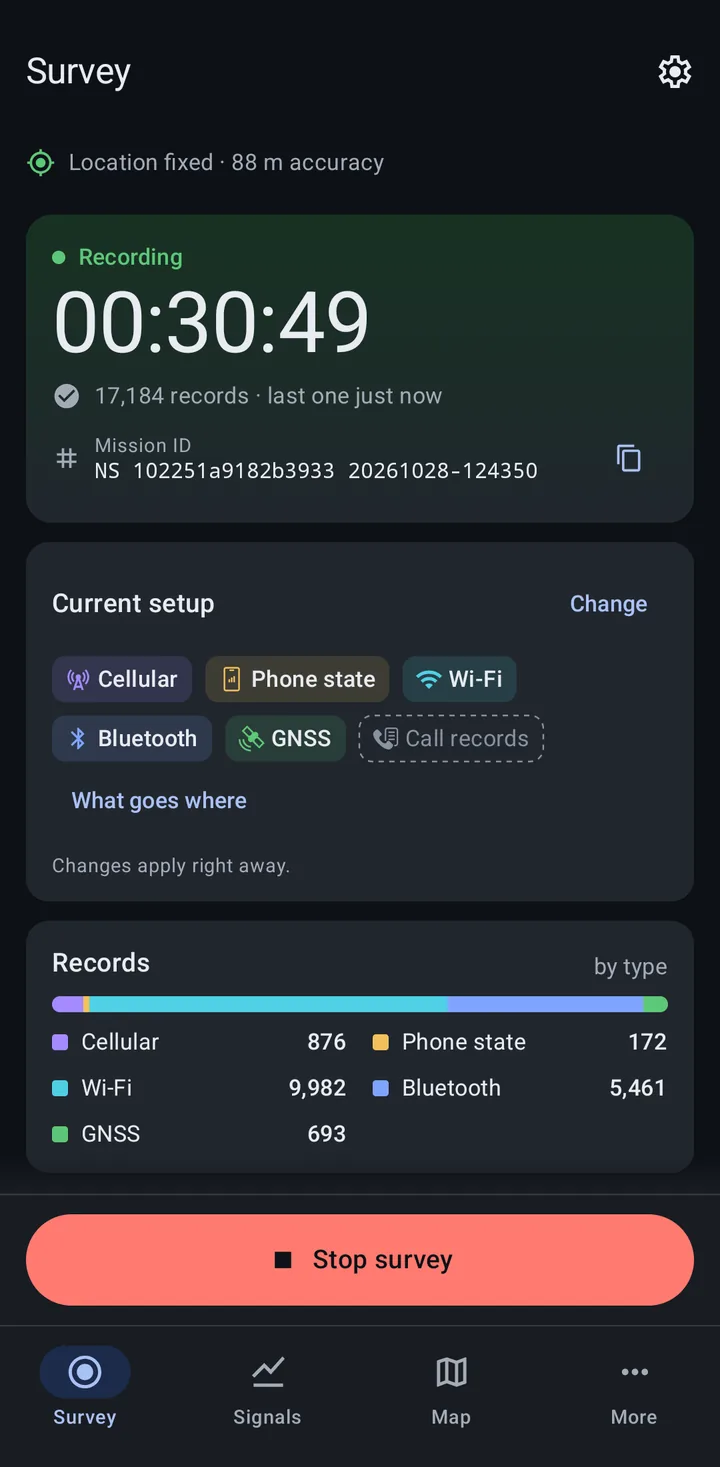
The Recording card
Section titled “The Recording card”- The badge reads Recording, or Paused while scanning is paused: the battery reached your pause threshold, or MQTT stream is the only destination and its queue filled up while the broker was unreachable.
- The big timer is how long the survey has run.
- Under it, the record count and when the last record arrived: “last one just now”, “last one 3 s ago”, “last one 2 min ago”, “waiting for the first record”, or “paused, nothing being recorded”.
- The Mission ID, with a copy button.
- When you did not start the survey yourself, a line says what did: Started at boot, Started by another app, Started when the app opened, or Started by your organization.
Current setup and Change
Section titled “Current setup and Change”The Current setup panel (titled with the saved setup’s name when you picked one) shows the record types as chips. Types that are on are colored; types that are off have a dashed outline. A type that no running destination takes shows ”· not sent”; tap it to open What goes where.
Tap Change to open Change setup. It asks the same two questions as the Ready screen. Your edits apply when you tap Apply now, right away, to the running survey, and the Mission ID stays the same. The panel says so: “Changes apply right away.” If you take NS Analytics out, the sheet notes that records already queued still upload (or, with automatic upload off, that they stay on the phone until you upload them from NS Analytics).
Records
Section titled “Records”The Records panel shows the count for each record type, with a bar in the record type colors. When the survey sends only to Community databases, the counts are of records saved for upload instead. Those are saved when the survey starts and then only after you move a set distance with a good enough location fix, so the count holds still while you stand still. Cells without a full identity, usually neighbor cells, are left out.
Where it’s going
Section titled “Where it’s going”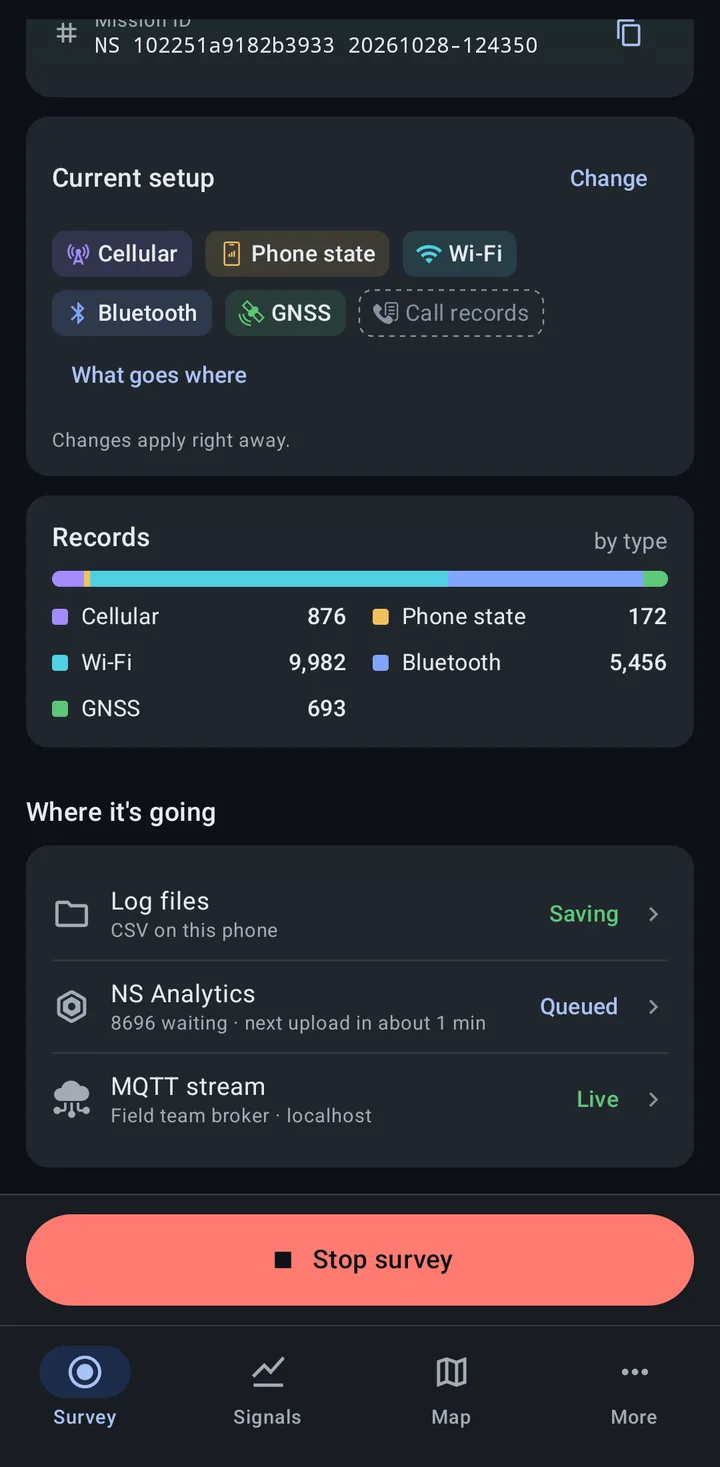
Where it’s going lists each destination in the survey with a status word and a detail line. Tap a row to open its page. Green means records are arriving, the accent color means an upload is on its way, amber means they are held on the phone, and red means they are not arriving and need you.
| Word | Destinations | What it means |
|---|---|---|
| Saving | Log files | Writing every record type to files. |
| Partly saving | Log files | Some record types could not get a file. |
| Uploading | NS Analytics, Community databases | An upload is running. |
| Queued | NS Analytics, Community databases | Records wait for the next upload, or one is about to start. |
| Up to date | NS Analytics | Nothing is waiting. |
| Waiting for internet | NS Analytics | Records wait until the phone is online. |
| Collecting | Community databases | Records collect and upload in batches, and when the survey stops. |
| Not uploading | NS Analytics, Community databases | Automatic upload is off, so records stay on the phone. Use Upload now. |
| Will retry | NS Analytics, Community databases | The last upload failed. It tries again on its own, or use Upload now. |
| Upload failed | Community databases | The last upload failed. Open shows why. |
| Key refused | Community databases | OpenCelliD refused the API key. |
| Paused | Any | Scanning is paused. For NS Analytics, the detail Workspace quota reached means the workspace’s record quota is reached, so uploads are paused. |
| Connecting | MQTT stream, gRPC stream | Connecting for the first time. Records are held until it connects. |
| Can’t connect | MQTT stream, gRPC stream | Still not connected after about 20 seconds, or the first attempt failed. |
| Live | MQTT stream, gRPC stream | Connected and sending. |
| Reconnecting | MQTT stream, gRPC stream | The connection dropped. Records are held until it comes back. |
| Dropping | MQTT stream, gRPC stream | The queue is full and new records are thrown away. |
| Sign-in failed | MQTT stream | The broker refused the user name or password. |
| Check settings | MQTT stream | The broker settings are not valid. |
Notices at the top
Section titled “Notices at the top”When something needs you, a notice appears at the top of the screen:
- Paused: battery at N% when the battery dropped to your pause threshold, and Battery at N% shortly before it does.
- Paused: MQTT broker unreachable when MQTT stream is the only destination and its queue filled up. Nothing is recorded until it reconnects.
- MQTT is dropping messages when the broker is unreachable and its queue is full, but other destinations still receive everything.
- No records for N min when the survey is running but nothing has arrived for a while.
- N things need attention, listing what the survey asked for but is not getting (for example, a record type that needs a permission or a destination that cannot connect), with a button to fix each one where there is one.
On the Ready screen, Your last survey stopped explains a survey that ended on its own because the MQTT broker refused the user name or password, or its settings were not valid, and nothing else was recording.
Tap Stop survey (the red button). A message reads “Survey stopped · N records”, and the screen goes back to Ready with the Last survey line and its Mission ID. Records still waiting for NS Analytics or Community databases stay on the phone and show under Still to do.
On a phone your organization manages (unless you chose to use your own settings), Stop first asks Stop this survey? with Stop survey and Keep surveying. When the survey is set to start automatically, it adds “It starts again the next time this phone restarts.”
When your organization sets the survey
Section titled “When your organization sets the survey”On a managed phone, your organization can choose some record types and destinations for you, or turn them off:
- A tile or row your organization set shows a building icon, and a row reads Set by your organization. Tapping one opens a sheet that says “Your organization chose this for this phone. Ask your administrator to change it.”, with See all (opens Organization settings), Use my own settings, and OK.
- Record types and destinations your organization turned off are not shown at all.
- A line near the top reads “Your organization sets part of this survey.”, followed by how many more items it turned off, with See all.
- When your organization sets every record type and destination, the Saved setups button is hidden, and the Recording panel shows Set by your organization in place of Change.
For what an administrator can set, see Managed configuration (MDM).
Related
Section titled “Related”- Your first survey: a step-by-step first run through this screen
- Saved setups: switch between setups with one tap, and start automatically
- Mission ID and the survey notification
- Finding your way around: the four tabs and the More tab