Saved setups and auto start
A saved setup remembers your answers to the Survey tab’s two questions: which record types to record and which destinations to send them to. Save the combinations you use often, such as a quick Wi-Fi walk to Log files and a full survey to NS Analytics, and switch between them with one tap.
Open Saved setups
Section titled “Open Saved setups”On the Survey tab, tap the Saved setups button (the bookmarks icon) in the top bar, next to the Settings gear.
The button is there only in Ready. While a survey is recording, use Change on the Survey tab instead. On a managed phone where your organization sets every record type and destination, the button is hidden because there is nothing left to choose.
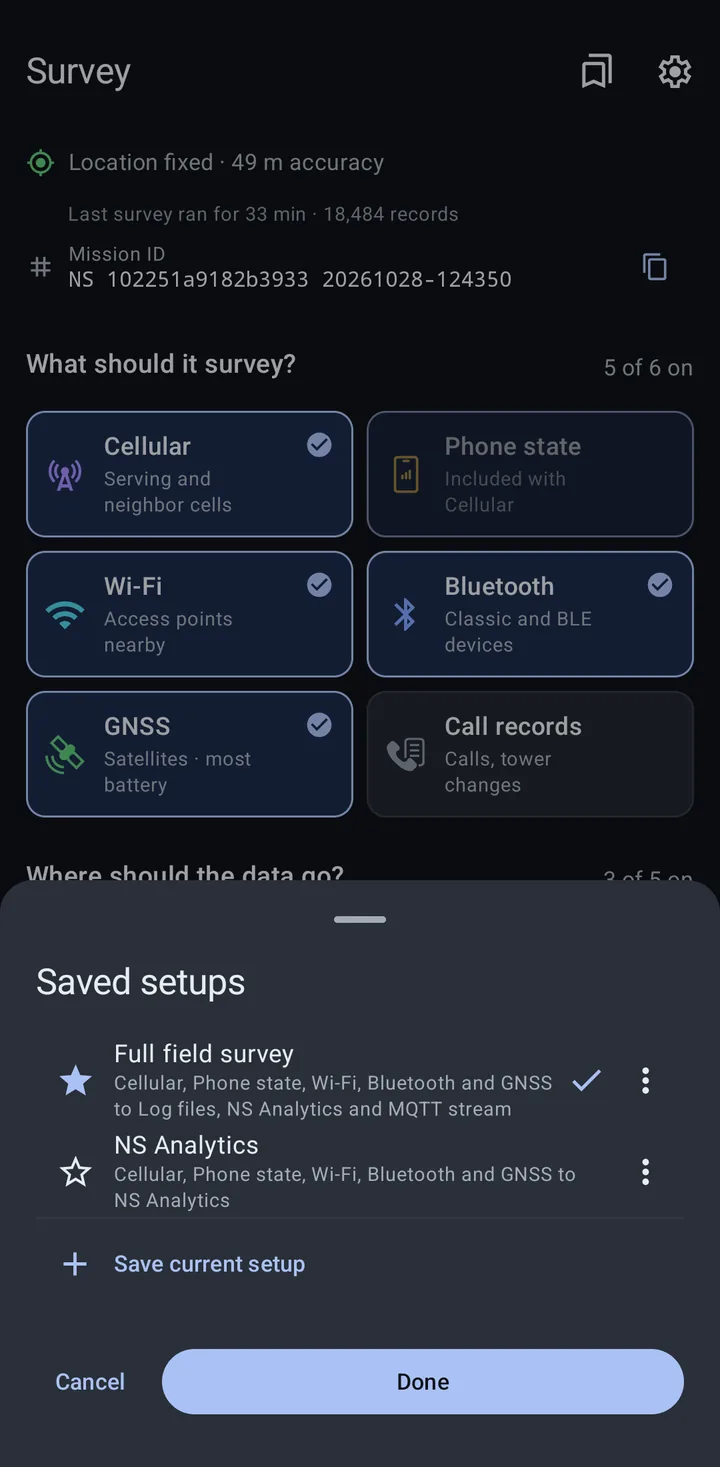
Each setup shows its name and a summary of what it records and where it goes, for example “Cellular, Phone state, Wi-Fi, Bluetooth and GNSS to Log files, NS Analytics and MQTT stream”. The one that matches the Survey tab right now has a check mark.
Save a setup
Section titled “Save a setup”- Set up the Survey tab the way you want it: record types on, destinations on.
- Open Saved setups and tap Save current setup.
- Type a name (up to 40 characters) and tap Save.
A message confirms it (“Saved” and the name). Save current setup is grayed out until at least one record type and one destination are chosen.
If another saved setup already has that name (ignoring capitals), the sheet says “Replaces the saved setup with this name” and the button becomes Replace. Replacing keeps the old setup’s star.
Use a setup
Section titled “Use a setup”Tap a setup in the list. The Survey tab’s tiles and destination rows change to match it and the sheet closes. Picking a setup does not start the survey; press Start survey when you are ready.
If you then change a tile or a row, the check mark goes away. It comes back if your changes bring the Survey tab back to a saved setup’s choices.
Star, rename and delete
Section titled “Star, rename and delete”- Star: tap the star next to a setup. Starred setups are listed first, then the rest in the order you saved them.
- Rename: tap the three-dot button on a setup’s row, then Rename. A name another setup already uses is refused (“Another setup already has this name”).
- Delete: tap the three-dot button, then Delete, and confirm. Deleting a setup does not change the Survey tab: “What is selected on the Survey screen stays as it is.”
What a setup stores
Section titled “What a setup stores”A saved setup stores only the record types and the destinations. It does not store how each destination is configured (the MQTT broker, the gRPC server, the NS Analytics workspace, the community upload targets), scan rates, or any other setting. Those stay as they are on the phone. A destination in a setup that is not set up on this phone shows Set up or Connect on the Survey tab, as usual.
On a managed phone, your organization’s choices still apply on top of the setup you pick.
If you upgraded from 1.x on a phone that was connected to NS Analytics, you may already have a setup named NS Analytics. See Upgrading from 1.x.
Start survey automatically
Section titled “Start survey automatically”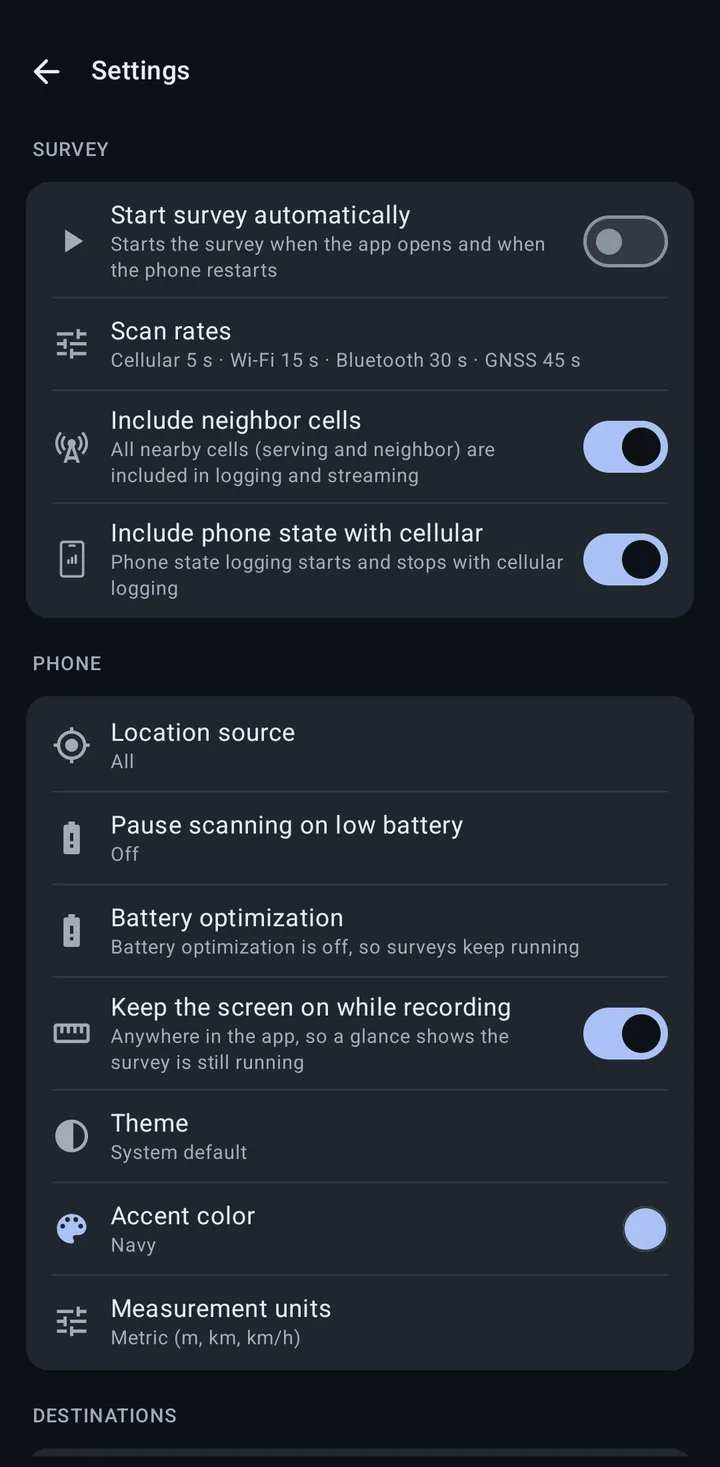
To have the survey start on its own, open Settings (the gear on the Survey tab, or More > Settings) and turn on Start survey automatically in the Survey group. It “Starts the survey when the app opens and when the phone restarts”. It is off by default.
What it starts is whatever the Survey tab is set to at that moment, the same as pressing Start survey. On the Recording card, the survey then says Started when the app opened or Started at boot.
- When the app opens: the survey starts the first time you open the app after it was fully closed (for example after a restart, or after Android stopped the app), if one is not already running. Unless your organization sets part of the survey (see below), this happens even if you stopped the last survey yourself. Going back to the app while it is still running, rotating the phone or changing the theme does not start it again.
- When the phone restarts: the survey starts after the phone finishes booting.
Background location
Section titled “Background location”Starting after a restart needs the background location permission (Android 10 and later). When you turn the setting on and that permission is missing, a Background location dialog explains why the app needs it. Tap Open Settings and choose Allow all the time on the next page.
Without background location, the survey does not start after a restart. It still starts the next time you open the app.
If Call records is one of your record types, turning the setting on asks for the call records permissions first.
On a managed phone
Section titled “On a managed phone”Your organization can turn automatic start on or off for you. The setting then shows Set by your organization, and tapping it explains the lock instead of changing it.
On a managed phone (unless you chose to use your own settings), Stop survey first asks Stop this survey?. If the survey is set to start automatically, it adds “It starts again the next time this phone restarts.” When your organization sets part of the survey and you stop it yourself, opening the app does not start it again; the next restart does.
See Managed configuration (MDM) for the auto_start_survey key and the other survey keys.
Related
Section titled “Related”- The Survey tab
- App settings
- Intent API: start and stop the survey from another app